Is 1Password better than Google Password Manager?
Yes, but not because it has more features.
The real difference shows up after something goes wrong: a hacked email account, a stolen laptop, or a breach.
Most comparisons don't talk about that.
This one does.
Want to create a strong password for your password manager? Our free generator creates cryptographically secure passwords in one click (no account needed).
Quick Verdict
If your Google account is compromised, your saved passwords may be exposed.
If your 1Password account is compromised, your vault is still encrypted.
Answer: Yes, 1Password is usually better than Google Password Manager for security and recovery protection.
Exception: If you only need free, basic saving inside Chrome/Android, Google Password Manager may be enough. For a detailed breakdown of whether Google Password Manager is safe, we've analyzed the security model in depth.
Quick Comparison: Google Password Manager vs 1Password
| Feature | Google PM | 1Password | Verdict |
|---|---|---|---|
| Price | Free | $2.99/month | Google PM |
| Security Model | Account-tied (Google account = key) | Zero-knowledge (Secret Key + Master Password) | 1Password |
| Account Recovery Risk | High (Google account compromise = password access) | Low (needs Secret Key + Master Password) | 1Password |
| Passkeys | ✅ Yes | ✅ Yes | Tie |
| Family Sharing | Limited | 5 users, $4.99/month | 1Password |
| Travel Mode | ❌ No | ✅ Yes | 1Password |
| Cross-Browser | Chrome/Edge only | All browsers | 1Password |
| Best For | Solo Chrome users | Families & teams | Depends |
Full Transparency: Who We Are & Why Trust Us
We built SafePasswordGenerator.net because password security shouldn't require a credit card. This site earns revenue through Google AdSense, so we profit from your visit whether you choose Google, 1Password, or neither. We have zero incentive to push you toward either option - our only goal is honest information so you make the right choice for your needs.
Why this matters: Many "comparison" sites earn commissions from 1Password referrals but hide this. We don't. We make money from ads on this page, not from your decision.
Quick Answer: Which Is Safer?
1Password is objectively more secure due to dual-layer encryption (Master Password + Secret Key). 1Password has never been breached (Cybernews, 2025).
But here's the truth: Google Password Manager with on-device encryption enabled + strong 2FA provides excellent protection for most users at $0 cost.
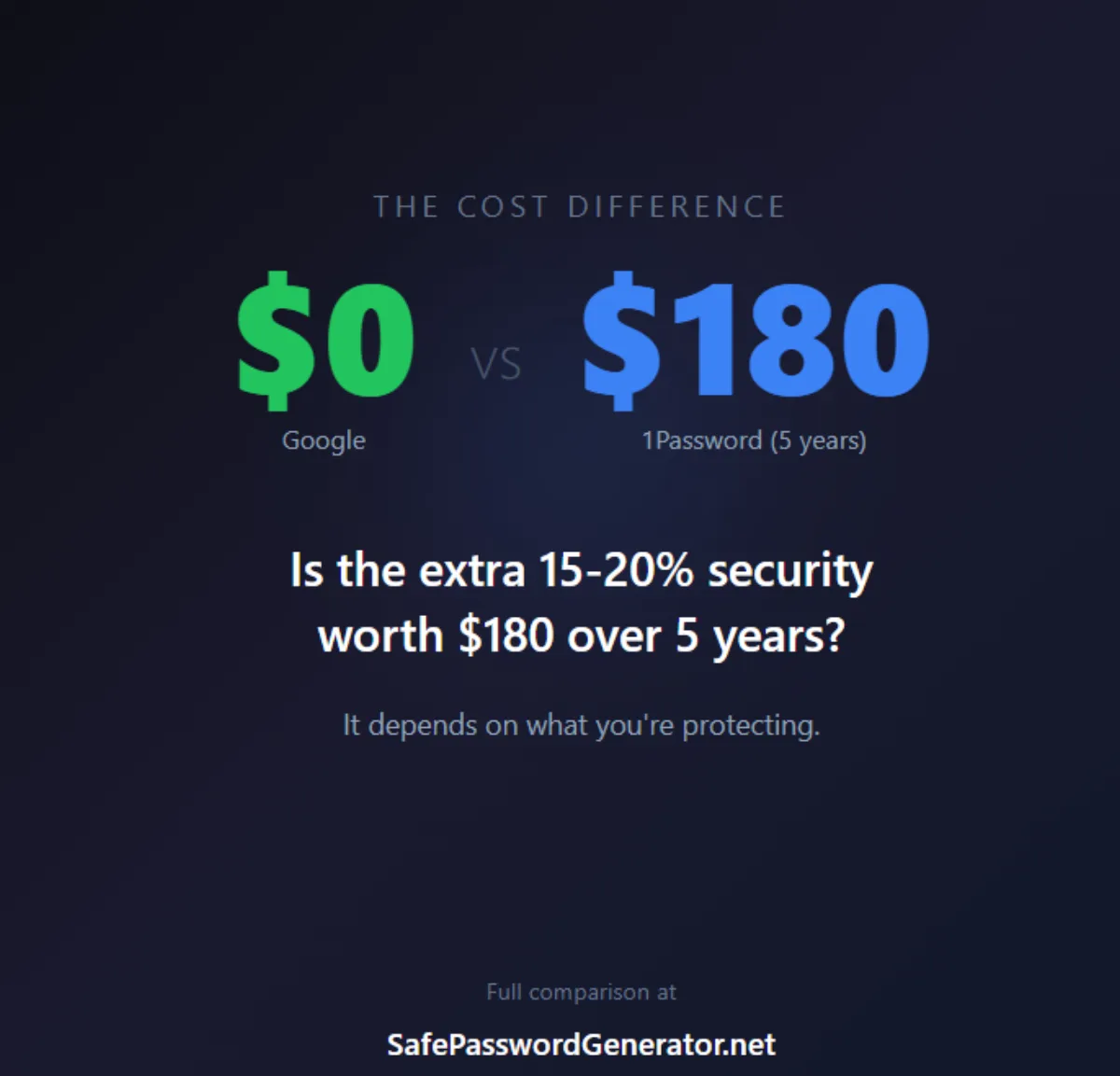
The $180 question: Is 1Password's extra 15-20% security worth $179.40 over 5 years?
Short answer: Only if you manage business accounts, significant money (>$10K), or client data.
TL;DR: Complete Comparison
| Factor | Google (Free) | 1Password (Paid) |
|---|---|---|
| Security | ||
| 5-Year Cost | $0 | $179.40 |
| Breach History | No PM-specific breaches | Never breached |
| Best For | Chrome/Android users, personal accounts | Multi-platform, business, high-value accounts |
| Setup Time | 5 minutes | 15 minutes |
| Key Advantage | Free, native integration | Secret Key protection |
| Key Weakness | Single point of failure (Google Account) | Costs $2.99/month |
Bottom Line: Google + our free password generator = $0 with solid security. 1Password = $3/month with maximum security. Both crush password reuse. Need a secure WiFi password? Our generator creates WPA3-compliant keys instantly.
Security: The Real Differences
Is 1Password Better Than Google Password Manager?
For high-value accounts, yes. 1Password's dual-layer model (Master Password + Secret Key) means an attacker has to compromise multiple independent factors before they can touch your vault. Even if someone successfully phishes your Master Password, they still need the Secret Key that never leaves your devices. That extra layer is exactly what you want protecting production access, large financial accounts, or anything that would ruin your week if it got popped.
But that doesn't mean Google Password Manager is "bad." With on-device encryption enabled and strong 2FA on your Google account, it's more than enough for casual users who mainly need free, reliable password storage. Think Netflix, shopping accounts, and lower-risk services. The right answer isn't "1Password is always better" – it's that 1Password is better for high-stakes credentials, while Google is fine for everyday accounts, as long as you understand and accept the single point of failure risk.
Both Google Password Manager and 1Password suggest strong passwords, but neither gives you full control over the output. If you want to set your own parameters (length, character types, exclusions), you can generate a 16-character password independently and paste it into whichever manager you prefer.
What Makes 1Password More Secure?
1Password uses dual-layer encryption: your Master Password PLUS a unique 128-bit Secret Key that never leaves your devices. According to 1Password's security architecture, this zero-knowledge design means even if 1Password's servers were compromised, attackers would need your Master Password AND your Secret Key to decrypt your vault.
In plain English:
- Layer 1: Master Password (you memorize)
- Layer 2: Secret Key (stored on your devices)
- Layer 3: Encrypted vault data (on 1Password servers)
Why this matters: Even if you're phished and an attacker gets your Master Password, they still can't access your vault without your Secret Key. This is 1Password's killer feature.
Google's Security (Often Misunderstood)
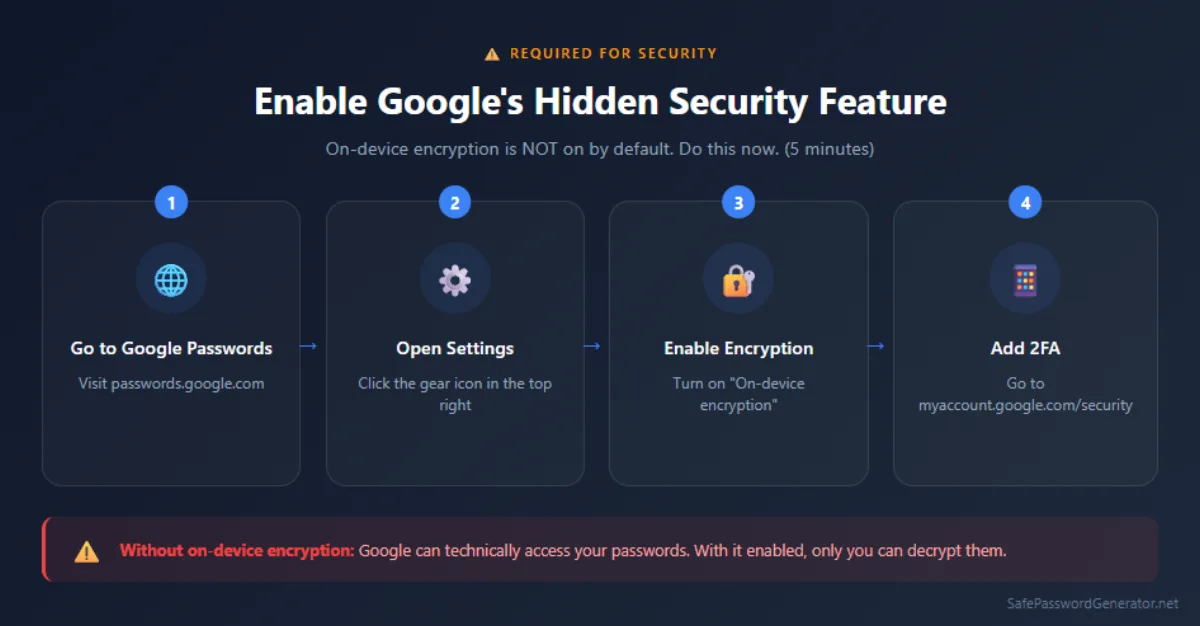
CRITICAL: Google's end-to-end encryption is NOT on by default - you must enable "on-device encryption". According to Google's Password Manager documentation, on-device encryption must be manually enabled in Chrome settings at passwords.google.com.
How to enable (do this now):
- Go to passwords.google.com
- Settings → Look for "On-device encryption"
- Enable it + set up device PIN
With on-device encryption enabled, Chrome encrypts passwords with a key known only to your device before sending to Google (Google Chrome Help, 2025).
The catch: Your entire vault's security equals your Google Account security. Compromise your Google Account = access to all passwords.
What Happens If Your Email Account Gets Hacked?
This is where most comparisons miss the point.
Google Password Manager is tied to Google account access. If someone compromises your Google account (phishing, SIM swap, malware, or a weak password), they can potentially access all your saved passwords. Even with on-device encryption enabled, an attacker who gains full Google account access can sync passwords to their own device.
Your Google account becomes a single point of failure. One breach, and everything stored in Google Password Manager is at risk.
1Password uses an extra secret (Secret Key) + encryption design. Even if an attacker somehow gained access to your 1Password account, they would still need your Master Password AND your unique Secret Key to decrypt your vault. The Secret Key never leaves your devices, making offline attacks impossible without physical device access.
This means 1Password has multiple independent layers. An attacker needs to compromise multiple factors simultaneously: your account, your Master Password, and a device with your Secret Key.
Why recovery flows matter more than "features." Features like auto-fill and browser integration are nice, but they don't protect you after a breach. The real test is: what happens when something goes wrong? With Google, account compromise means password exposure. With 1Password, account compromise means nothing without your Secret Key.
This isn't about Google being "bad." It's about understanding the security model. Google's convenience comes with a single point of failure. 1Password's cost comes with multiple independent security layers.
Is Google Password Manager Secure?
Yes, but with important caveats. Google Password Manager can be secure, but only if you take specific steps to enable its security features.
Here's what you need to know:
Security Requirements for Google Password Manager
- Enable On-Device Encryption: This is NOT enabled by default. You must manually turn it on in settings at passwords.google.com. Without this, Google technically has access to your passwords.
- Use Strong 2FA: Your Google Account must have two-factor authentication enabled. Since your entire password vault is tied to your Google Account, this is critical.
- Strong Master Password: Your Google Account password becomes your master password. It must be unique, strong, and never reused elsewhere.
The Reality: With on-device encryption enabled and strong 2FA, Google Password Manager provides solid security for most personal accounts. However, it has a single point of failure - if your Google Account is compromised, all your passwords are at risk.
When Google PM is Secure Enough:
- Personal social media accounts
- Shopping and entertainment accounts
- Low to moderate-risk financial accounts
- You've enabled all security features (on-device encryption + 2FA)
When You Should Upgrade:
- Business or client accounts
- High-value financial accounts (>$10K)
- Healthcare or legal credentials
- You need cross-platform access beyond Chrome/Android
- The extra $3/month is trivial compared to what you're protecting
Bottom Line: Google Password Manager is secure enough for most users when properly configured. The question isn't "Is it secure?" but rather "Is it secure enough for what you're protecting?" For high-stakes accounts, 1Password's additional Secret Key layer is worth the cost.
Google Password Manager vs 1Password: Side-by-Side
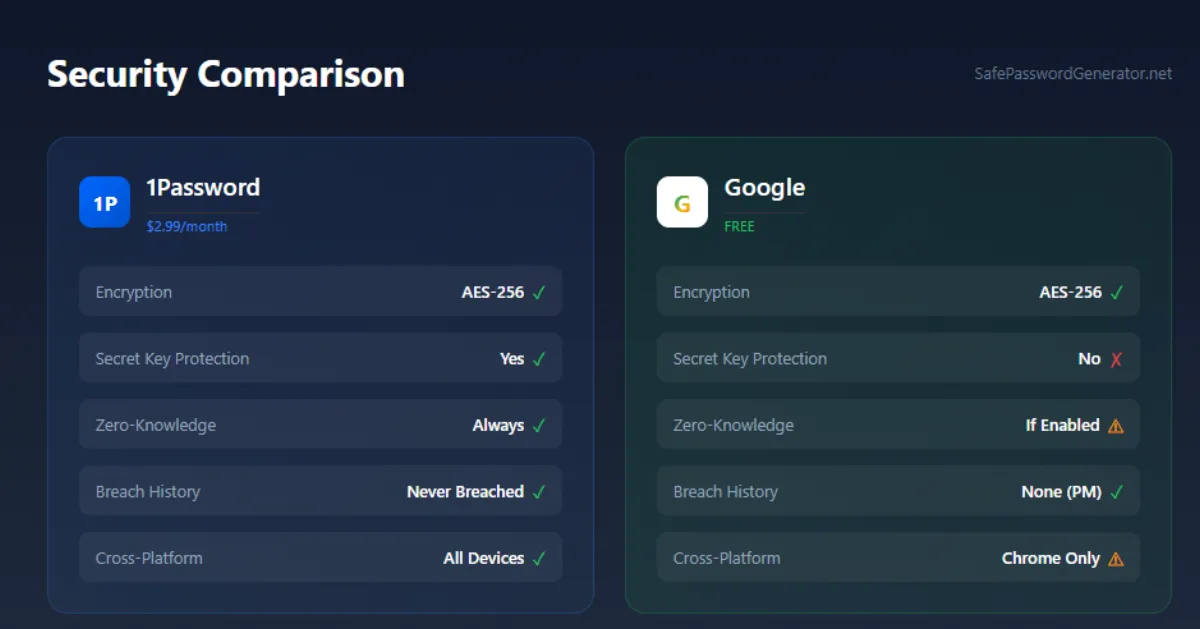
Honest assessment: With on-device encryption + 2FA, Google gives you 80-85% of 1Password's security at $0. The 15-20% gap is the Secret Key layer.
The "iPhone Problem" (Read This If You Use iOS)
If you have an Android phone and use the Chrome browser on your computer, Google Password Manager is flawless. It's invisible magic.
But if you have an iPhone, the story changes.
This is the hidden headache most people don't realize until it's too late. Google Password Manager treats iOS like a "guest," while 1Password treats it like a home.
- The 1Password Experience on iPhone: You open an app (like Instagram or your Bank). You tap the password field. FaceID scans your face. The password fills instantly. It feels native, smooth, and works in Safari, Chrome, and every single app.
- The Google Experience on iPhone: It's... clunky. Because Google Password Manager lives inside the Chrome/Google app, it often fights with Apple's iCloud Keychain. You might find yourself doing the "App Switching Dance," opening Chrome, finding the password, copying it, switching back to Instagram, and pasting it.
The Verdict:
- 100% Android/Chrome User: Google Password Manager is perfect.
- Mixed User (iPhone + Windows PC): This is where 1Password wins. It is the "universal bridge" that makes your passwords flow smoothly between your Apple phone and your Windows computer. Google just creates friction here.
The Money Question: 5-Year Analysis
Cost Breakdown
| Option | Monthly | Annual | 5-Year Total | Per Day |
|---|---|---|---|---|
| Google + Our Tools | $0 | $0 | $0.00 | $0.00 |
| 1Password Individual | $2.99 | $35.88 | $179.40 | $0.10 |
| 1Password Families (5) | $4.99 | $59.88 | $299.40 | $0.16 |
What $180 Buys You
For $179.40 over 5 years ($36/year), you get:
- Secret Key additional protection layer
- Never-been-breached track record
- Travel Mode for international trips
- 1GB encrypted file storage
- Cross-platform consistency
- Zero ads, zero metadata collection
- Priority support
That's 10 cents per day or the cost of one Starbucks coffee per month.
Is It Worth It?
Worth the cost if you manage:
- ✅ Business/client accounts
- ✅ Investment accounts >$10,000
- ✅ Healthcare or legal credentials
- ✅ Multiple income streams
- ✅ Crypto wallets
- ✅ Anything where breach cost > $180
Stick with free if you manage:
- ✅ Social media & entertainment
- ✅ Shopping accounts
- ✅ Limited financial exposure
- ✅ $180 over 5 years is meaningful
Reality check: If a password breach would cost you more than $180 in time, money, or stress, pay for 1Password. Otherwise, free is fine.
Our Honest Recommendation
1Password vs Google Password Manager for Business
For businesses, teams, and anyone touching production or customer data, 1Password isn’t just “nicer UX” – it’s risk reduction. You get granular vaults per team, role-based access, detailed audit logs, and the ability to revoke access instantly when someone leaves. Travel Mode lets you strip sensitive vaults from devices when crossing borders, then restore them with a click. That matters if you’re handling client environments, financial systems, or anything that triggers compliance questions (SOC 2, HIPAA, PCI, etc.).
Google Password Manager simply isn't designed for that world. It has no concept of per-environment vaults, no fine-grained sharing controls, and no centralized admin console with real reporting. In a business context, a compromised Google Workspace account can expose both personal and corporate credentials in one shot. Our take: let Google handle personal convenience, and let a purpose-built manager like 1Password (or Bitwarden/Enterprise) own the keys to your infrastructure and production stack.
Choose Google (Free) + Our Tools If:
- ✅ You primarily use Chrome and Android
- ✅ You'll actually enable on-device encryption (5 minutes)
- ✅ You'll use strong 2FA (authenticator app or hardware key)
- ✅ Your accounts are moderate-risk
- ✅ $180 matters to you
- ✅ Tip: You must export a backup CSV once a year. If Google locks your account (which happens), you lose access to your passwords instantly.
Action plan (15 minutes total):
- Enable on-device encryption: passwords.google.com → Settings → Enable
- Set up 2FA: myaccount.google.com/security → Enable 2-Step Verification
- Use our free generator for new passwords: Generate password now
Total cost: $0 | Security level: Excellent for most users
Upgrade to 1Password If:
- ✅ You manage business/client accounts
- ✅ You have >$10K in financial accounts
- ✅ You travel internationally frequently
- ✅ $3/month is trivial compared to what you're protecting
- ✅ You want the "never breached" track record
The reality: 1Password is insurance. If a breach would cost you >$180 in time/money/stress, it's worth it.
FAQ
Is 1Password safer than Google Password Manager?
In most cases, yes. 1Password is built as a dedicated vault with strong end-to-end encryption and an architecture designed so your vault remains protected even if an attacker targets the provider. The Secret Key layer means even if someone gains access to your 1Password account, they still need your Master Password and Secret Key to decrypt your vault.
Can Google Password Manager be hacked?
If someone gains access to your Google account, they may be able to access saved passwords and sign into other accounts. That is why protecting your Google account with strong authentication is critical. With on-device encryption enabled and strong 2FA, Google Password Manager provides solid security for most personal accounts, but it has a single point of failure.
What happens if my Google account is compromised?
If someone gains access to your Google account, they may be able to access saved passwords and sign into other accounts. This is why protecting your Google account with strong authentication is critical. Even with on-device encryption enabled, an attacker who gains full Google account access can sync passwords to their own device.
Is 1Password worth paying for?
It can be worth it if you want stronger security controls, safer sharing, and better protection across devices. If you only need basic saving inside Chrome, Google Password Manager may be enough. Consider 1Password if you manage business accounts, high-value financial accounts, or need cross-platform access beyond Chrome/Android.
Should I use both Google Password Manager and 1Password?
Most people should pick one to avoid confusion and duplicates. If you use 1Password, you can still keep Google Password Manager off to reduce accidental saving in Chrome. Using both increases the chance of password mismatches and makes it harder to maintain consistent security practices.
Is Google Password Manager safe?
Yes, for low-stakes accounts. The passwords are strong and use AES-256 encryption, but the risk is architectural: one Google account breach can expose everything tied to that identity. If an attacker gets into your Google account, they don't just see a few logins – they get your email, password resets, autofill data, and anything Chrome has stored. That's why Google Password Manager is best treated as fine for casual, personal accounts, but not as the single vault for high-value assets.
Can 1Password be hacked?
1Password has never had a service-side breach as of September 2025 (Cybernews, 2025). Even if servers were compromised, attackers need your Master Password plus Secret Key plus encrypted data - all three independently (1Password Security, 2025). The realistic risk is device malware, which affects any password manager.
Do I need to pay for password security?
No. Google with on-device encryption plus 2FA provides solid security for personal accounts. However, 1Password's Secret Key layer offers genuinely better protection. Worth paying if you manage business accounts, significant money, or sensitive data. Not worth it for social media and entertainment accounts.
Can I use your free generator with any password manager?
Yes! Our generator creates passwords in your browser - no account, no data sent to us. Use it with Google, 1Password, Bitwarden, or anything else. We make money from ads on the page, not from your passwords.
What about Bitwarden?
Bitwarden is excellent! It's free, open-source, and offers more features than Google while staying $0. We focused on Google vs 1Password because they're most popular, but Bitwarden deserves consideration. Our generator works great with it too.
Which password manager is best for iPhone?
Both Google Password Manager and 1Password work on iPhone, but they shine in different ways. Google integrates nicely if you live in Chrome on iOS and mainly need autofill for personal accounts. 1Password, on the other hand, feels like it was built for Apple users: the iOS app is more polished, supports Face ID/Touch ID seamlessly, and gives you full control over multiple vaults, shared logins, and secure notes. If you only need autofill for a handful of sites, Google is fine. If you’re managing dozens of accounts across work, personal, and family, 1Password’s iOS experience, Watchtower alerts, and cross-platform vaults make it the better long-term choice.
Can I import passwords from Google to 1Password?
Yes. The easiest path is to export your saved Chrome/Google passwords as a CSV file and then import that file into 1Password. In Chrome, go to Settings → Autofill and passwords → Google Password Manager → Saved passwords → ⋮ → Export, then store that CSV somewhere secure and temporary. In 1Password, use the import tool to pull in that CSV, double-check a few critical logins, and then permanently delete the export file from your system and any cloud backups. We recommend migrating high-value accounts first (email, banking, work) and then gradually cleaning up the rest, so you're never stuck with both vaults half-configured.
Does 1Password work with Chrome?
Yes, 1Password works great with Chrome on desktop and mobile. The 1Password browser extension plugs directly into Chrome, letting you autofill logins, generate new passwords, and save new sites without ever leaving the tab you're in. Under the hood, everything stays end-to-end encrypted and synced with your vault across devices. If you're already deep in the Chrome ecosystem, 1Password doesn't fight that, it layers proper zero-knowledge password management on top of the browser you're already using. That's why our recommendation is: keep using Chrome if you like it, but let 1Password own the long-term storage and security story.
🔧 Related Security Tools
WiFi Password Generator
Generate WPA2/WPA3 compliant router passwords. 20+ characters, optimized for network security.
Password Strength Checker
Test if your current passwords are secure. Instant analysis, zero data stored.
Password Length Guide 2026
How long should your password be? NIST guidelines and real-world recommendations.
Choose in 10 Seconds
Skip the long comparison. Pick your path:
If you use Chrome only → Google is fine
If you use multiple devices/work → 1Password
If you share with family/team → 1Password
If your email is high-risk → 1Password
Final Verdict
The truth: 1Password is objectively more secure. The Secret Key, never-breached record, and Travel Mode are genuinely superior.
But here's what matters: For most people managing moderate-risk accounts, Google Password Manager with on-device encryption + strong 2FA + our free generator provides excellent protection at $0.
Quick Decision Guide
Choose FREE (Google + our tools):
- Chrome/Android primary ecosystem
- Personal/moderate-risk accounts
- Will enable on-device encryption + 2FA
- $180 over 5 years is meaningful
Choose PAID ($3/mo 1Password):
- Business/client accounts
- $10K in financial accounts
- Travel internationally
- Breach would cost >$180
The Bottom Line: Both are infinitely better than reusing passwords. The best password manager is one you'll actually use.
Free can be secure if you do it right. The paid option offers 15-20% more security - worth it if you're protecting high-value accounts, not worth it for casual use.
Whatever you choose, just use something. Password reuse is the real enemy.
Whether you choose Google, 1Password, or any other manager, you need strong passwords.
Generate Password Now →Sources & References
All claims in this article are backed by authoritative sources. We prioritize accuracy and transparency in our security analysis.
Security & Technical Documentation
- 1Password Security Whitepaper (2025) - Official security documentation and encryption details
- Google Chrome Password Protection (2025) - Official documentation on on-device encryption
- 1Password Security Audits (2025) - Third-party security audit reports
Independent Security Reviews
- Cybernews 1Password Review (2025) - Independent security analysis and breach history
- All About Cookies 1Password Review (2024) - Comprehensive security evaluation
- TechRadar Google Password Manager Review (2025) - Independent Google PM analysis
Pricing & Business Information
- 1Password Official Pricing (2025) - Current subscription plans and costs
- Google Account Security (2025) - 2FA setup and account protection
Industry Standards & Guidelines
- NIST SP 800-63B Guidelines (2024) - Official password security standards
- OWASP Authentication Cheat Sheet (2025) - Security best practices
📝 Editorial Note
This comparison is based on publicly available information as of September 2025. Security features and pricing may change. We recommend verifying current information directly with each service provider.