Passkeys Explained: 5 Things Nobody Tells You
Disclosure: This post contains affiliate links. If you purchase through these links, we may earn a commission at no extra cost to you. We only recommend products we've tested and trust.
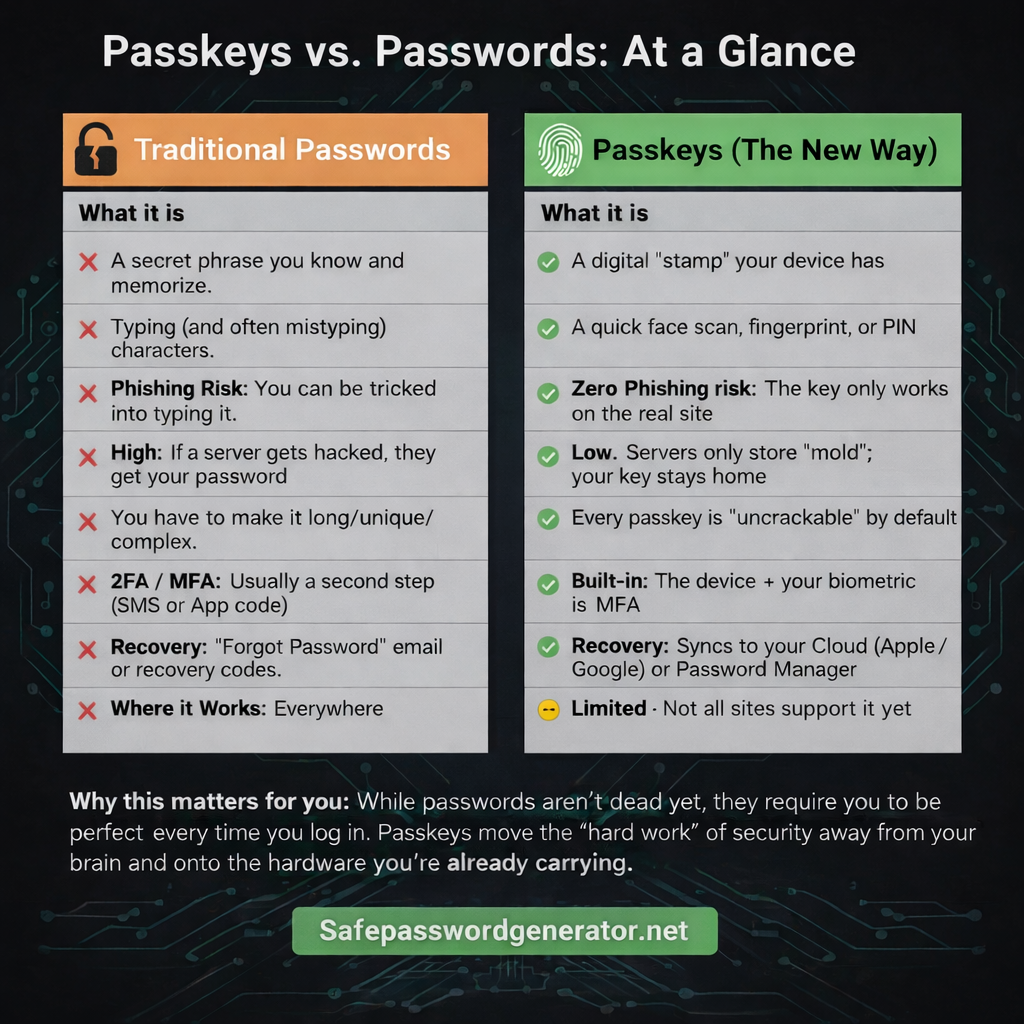
TL;DR
How passkeys work: Passkeys use public-key cryptography. Your device generates a unique key pair for each site: a private key (stays on your device) and a public key (sent to the website). When you log in, your device creates a cryptographic signature that proves you have the private key. Your fingerprint or face just unlocks that key locally. The website never sees your biometric.
What authenticates you? A cryptographic key pair unique to each site. Your fingerprint just unlocks it. The website never sees your biometric.
Multi-device access? Passkeys sync through iCloud, Google, or a password manager. Lose your phone, sign into your backup, and everything restores.
Better than password + 2FA? Yes, because of phishing. Your strong password can still be intercepted in real-time attacks. Passkeys can't. They only work on the real site. It's like a key that physically refuses to turn if you're at the wrong house.
The catch? Not all sites support passkeys yet. You'll run both systems for a while.
Bottom line: Start using passkeys where offered, keep your passwords as backup, and let the transition happen gradually.
Now here's the full breakdown.
I keep seeing the same question pop up on Reddit, in YouTube comments, and in my DMs: "How do passkeys actually work?"
And honestly, most explanations I've read are garbage.
They tell you passkeys are "more secure" and "the future" without explaining what's actually happening under the hood. They gloss over the questions that actually matter: What's authenticating you, exactly? What happens if you lose your phone? Why should you trust this over a strong password plus two-factor authentication?
I get the skepticism. Most people explaining passkeys work for companies selling passkeys. So let me give you the real breakdown, including the parts that are still messy.
By the end of this post, you'll understand exactly what's authenticating you, how passkeys work across devices, and whether they actually beat your current setup. No marketing fluff. Just the technical reality explained in a way that makes sense.
What is a Passkey? (The Wax Seal Analogy)
This is where most explanations fail. They say something like "your device authenticates you" and call it a day. That's technically true but completely useless for understanding what's happening.
Here's the real answer: a cryptographic key pair authenticates you. Your fingerprint or face just unlocks the drawer where that key lives.
Let me explain with an analogy that actually works.
The Old Way (Passwords)
Think of passwords like a secret phrase. You prove your identity by knowing the phrase. The problem? Anyone who learns the phrase can pretend to be you. Doesn't matter how long or complex you make it. If someone gets it, they become you.
The New Way (Passkeys)
Think of passkeys like a wax seal. Back in the day, kings and nobles had unique stamps they'd press into hot wax to seal letters. Anyone could verify the seal was authentic by comparing it to a known impression, but nobody could forge it because only the king had the original stamp.
Passkeys work the same way.
When you create a passkey for a website, your device generates a unique stamp (called a private key) and gives the website a mold (called a public key). Every time you log in, your device creates a fresh wax seal that only your stamp could have made. The website checks it against the mold. Match? You're in.
Your fingerprint or face ID doesn't authenticate you to the website. It just unlocks the drawer where your stamp is kept. The website never sees your biometric data. It only sees the cryptographic proof that your stamp made the seal.
If that sounds familiar, it should. This is public-key cryptography, the same tech that secures online banking, HTTPS, and basically everything sensitive on the internet. It's battle-tested. The only new part is using it for login instead of passwords.
How Passkeys Sync Across Multiple Devices
Here's the fear I hear constantly: "If the key is on my device, am I locked out on my laptop? My tablet? My work computer?"
Valid concern. Bad news travels fast in security circles, and early passkey implementations did have this problem. But the ecosystem has evolved. There are now three ways passkeys sync across devices.
Method 1: Platform Ecosystem Sync
If you're all-in on Apple, your passkeys sync automatically through iCloud Keychain. Same deal with Google if you're in the Android/Chrome ecosystem. Create a passkey on your iPhone, and it shows up on your iPad and Mac automatically. Basically, if your phone knows you, your laptop will too, as long as they're logged into the same Apple or Google account.
This works great if you live in one ecosystem. It falls apart the moment you mix platforms. Got an iPhone but use Windows at work? Your iCloud passkeys won't help you there.
Method 2: Password Manager Sync
This is the solution for most people. Password managers like 1Password, NordPass, Proton Pass, and Bitwarden now sync passkeys across all platforms. Create a passkey on your iPhone, access it on your Windows laptop, your Android tablet, wherever.
If you're already using a password manager for your passwords (and you should be), this is the natural extension. One tool, all your credentials, all your devices.
Method 3: Hardware Security Keys
For the truly paranoid (or those with serious security requirements), hardware keys like YubiKey can store passkeys. Plug it into any device, tap to authenticate. No sync needed because the key is physical.
Downside: lose it and you're locked out unless you have backups. Most people don't need this level. But if you're protecting something genuinely high-value, it's worth considering.
The "Lost Phone" Problem: What Happens to Your Passkeys?
This is the question that stops people from adopting passkeys. And I get it. Your phone is your life. Losing it feels catastrophic.
But here's what nobody tells you: passkey recovery is actually better than what you have now.
Let's compare scenarios.
Scenario A: You lose your phone with passkeys
Your passkeys are backed up to iCloud (Apple), Google Account (Android), or your password manager. You get a new phone, sign in to your account, and all your passkeys restore automatically. Done. You're back in business.
Scenario B: You lose your phone with Google Authenticator or Authy codes
If you were using Google Authenticator without cloud backup enabled (which was the default until recently), those TOTP codes are gone. Permanently. You'll need to contact every single service, verify your identity through whatever painful process they have, and set up 2FA all over again.
I've seen people locked out of accounts for weeks because they lost their phone and their 2FA codes went with it.
The irony here is thick. People worry about losing access with passkeys while using a 2FA system that's actually more fragile. At least passkeys are designed to sync and restore. Those six-digit authenticator codes? Many people have no backup at all.
So yes, back up your passkeys. Use a password manager that syncs across platforms. But don't pretend your current setup is somehow safer. For most people, it's not.
Passkeys vs. Password + 2FA: Why Passkeys Win
Now for the hard part. Convincing you that passkeys are worth the switch when your current setup feels rock solid.
I hear this all the time: "I use a 32-character random password plus an authenticator app. That's basically uncrackable. Why would I change anything?"
Here's my honest answer: your setup IS strong. Against most attacks. But it has a fatal flaw that passkeys solve completely.
The flaw is phishing. And your strong password can't stop it.
Before you roll your eyes, hear me out. I'm not talking about obvious Nigerian prince emails. I'm talking about sophisticated real-time phishing that beats even security-conscious people.
Here's how it works:
- You get an email that looks exactly like your bank. Logo, formatting, everything matches.
- You click the link. The URL looks close enough: maybe it's bankofamerica.security-verify.com instead of bankofamerica.com.
- You enter your strong password. The fake site captures it instantly.
- The fake site passes your credentials to the real site in real-time.
- The real site sends a 2FA prompt to your phone.
- You approve it. Why wouldn't you? You're "logging in."
- The attacker is now authenticated as you.
This is called adversary-in-the-middle or real-time phishing. It's not theoretical. It happens constantly. And it works against password plus TOTP. It works against password plus push notification 2FA. Your 32-character password doesn't help because you're handing it directly to the attacker.
Why passkeys are completely immune to this attack:
The passkey is cryptographically bound to the actual domain. When you created a passkey for bankofamerica.com, it will only work on bankofamerica.com. Period.
If you land on a phishing site, your device won't even offer the passkey. The domain doesn't match, so the passkey doesn't appear as an option. It's like a key that physically refuses to turn if you're at the wrong house. There's nothing to intercept. No password to steal. No code to grab. The phishing page gets absolutely nothing.
This isn't a minor improvement. This is a fundamental architectural advantage.
I'm not saying your password plus 2FA setup is bad. I'm saying it has a known, exploited vulnerability that passkeys eliminate entirely. That's not marketing hype. That's cryptographic fact.
The Practical Reality (Honest Assessment)
I've made the case for passkeys. Now let me be straight about what's still messy.
What's working well:
Apple, Google, and Microsoft all support passkeys across their ecosystems. Major sites have adopted them: Google, Amazon, PayPal, GitHub, Microsoft, eBay, and the list keeps growing. Password managers are adding passkey support rapidly. The infrastructure is real and it works.
What's still frustrating:
Most sites don't support passkeys yet. Your bank probably doesn't. Your employer's systems probably don't. You'll be living in a hybrid world for a while.
Cross-platform sync requires a third-party password manager. If you're half Apple and half Windows (like millions of people), you can't rely on built-in sync.
Some sites implement passkeys poorly. They make you set one up but then still email you a code anyway, defeating the entire purpose.
You still need passwords as backup. Almost every site that supports passkeys still has password login as a fallback. We're not at passkey-only yet.
My honest recommendation:
Don't delete your passwords. Don't abandon your current setup overnight. Instead:
- Start using passkeys where they're offered. Google account is a good first one.
- Use a password manager that syncs passkeys across all your platforms.
- Keep your strong passwords and 2FA as your fallback.
- Phase into passkeys gradually as more sites adopt them.
This isn't an either/or situation. It's a transition. Start now so you're not scrambling later.
How to Set Up Your First Passkey (Step-by-Step)
Enough theory. Let's get practical.
Step 1: Check which accounts support passkeys
Start with Google since it has the smoothest implementation. Go to accounts.google.com, click Security, and look for Passkeys. Other major sites with good passkey support: Amazon, PayPal, GitHub, Microsoft, Best Buy, eBay, and Kayak.
Step 2: Create your first passkey
On Google: Security → Passkeys → Create a passkey. Your device will prompt you for biometric verification (fingerprint or face), and that's it. Takes about 30 seconds.
Step 3: Set up cross-platform sync
If you use multiple ecosystems (iPhone and Windows, for example), you'll want a password manager that syncs passkeys everywhere.
What to look for in a password manager for passkeys:
- Cross-platform apps (iOS, Android, Windows, Mac, browser extensions)
- Explicit passkey support (not all password managers have it yet)
- Secure sync that doesn't rely on one ecosystem
- Easy export options in case you want to switch later
NordPass and Proton Pass both handle passkeys well across platforms. If you're already using a password manager, check whether yours supports passkeys yet. If not, this might be the reason to evaluate alternatives.
Step 4: Test it
Log out of Google, then log back in. You should see the option to use your passkey. Tap it, verify with your fingerprint or face, and you're in. No password typed. No code entered.
That's the experience. And once you feel it, typing passwords starts to feel like using a fax machine.
The Bottom Line
Let me answer the questions we started with, directly:
What's actually authenticating you? A cryptographic key pair that's unique to each site. Your biometric just unlocks the private key on your device. The website never sees your fingerprint.
How do passkeys work across devices? Platform sync (Apple to Apple, Google to Google) or password manager sync (everywhere). Hardware keys are an option for high-security needs.
What if you lose your phone? Your passkeys restore when you sign into your backup service or password manager. This is actually more robust than authenticator apps, which often don't sync at all.
Why are passkeys better than password + 2FA? Phishing immunity. Your strong password can still be intercepted in real-time. Passkeys can't because they're cryptographically bound to the real domain.
Passkeys aren't perfect yet. The ecosystem is fragmented, adoption is incomplete, and you'll be using passwords alongside them for a while. But the security advantage is real, the user experience is better, and the transition is happening whether you're ready or not.
Might as well start now.
Want to test how secure your current passwords are?
Try our free tools to check your password strength and generate new secure passwords.
Frequently Asked Questions
Do passkeys store my biometrics?
No. Passkeys use public-key cryptography. Your biometrics (fingerprint or face scan) stay on your device and only unlock a private key. The website never sees or stores your biometric data.
Can I use passkeys on both iPhone and Windows?
Yes. By using a cross-platform password manager like 1Password, NordPass, Proton Pass, or Bitwarden, your passkeys sync across all devices regardless of operating system.
What happens if I lose my phone with passkeys?
Your passkeys are backed up to iCloud (Apple), Google Account (Android), or your password manager. When you get a new phone and sign in, your passkeys restore automatically. This is actually more robust than authenticator apps, which often don't sync.
Can passkeys be phished?
No. Passkeys are cryptographically bound to the real domain. If you land on a phishing site, your device won't even offer the passkey because the domain doesn't match. There's nothing to intercept.
Are passkeys safer than password plus 2FA?
Yes, specifically against phishing attacks. Password plus 2FA can be intercepted in real-time phishing attacks where attackers relay your credentials to the real site. Passkeys are immune to this because they only work on the legitimate domain.
How do passkeys sync across devices?
Passkeys sync through your platform ecosystem (iCloud for Apple, Google Account for Android) or through a cross-platform password manager. This means you can access your passkeys on any device signed into the same account.