Back to Blog
Reading time: 14 minutes | Last updated: February 11, 2026 | Category: Password Security

Passkeys in 2026: What Works, What Doesn't, and What You Still Need

Written by T.O. Mercer
Security Engineer | M.S. Information Systems | KCSA Certified | 10+ years DevSecOps at Fortune 500 companies

Reading time: 14 minutes | Last updated: January 4, 2026 | Category: Password Security

Passwordless Authentication in 2026: What It Actually Means for You

Quick Answer

Is passwordless authentication the future? Yes. The market hit $24 billion in 2025 and 70% of companies are adopting it. But here's what the headlines miss: 93% of users still type passwords every day. Only a few hundred sites support passkeys. You need BOTH passwords and passkeys for the next 5-10 years.

What to do now:

TL;DR: The 60-Second Reality Check

Don't have 14 minutes? Here's the truth:

  • The hype: "Passwords are dead!" Big Tech has been saying this for a decade.
  • The reality: 93% of people still use passwords daily. Only 7% are fully passwordless.
  • What changed: Passkeys actually work now. Google, Apple, Microsoft made them default.
  • The problem: You have 100+ accounts. Maybe 20 support passkeys. The rest need passwords.
  • The solution: A password manager that handles both. One tool, two technologies.

Jump to what matters:

What is passwordless? → The real stats → How passkeys work → What to do now →

Disclosure: Some links in this article are affiliate links. If you purchase through our links, we may earn a commission at no extra cost to you. We only recommend products we genuinely trust.

Big Tech wants to kill the password. They've been saying this for a decade.

But 2025-2026 feels different. Google made passkeys the default login. Microsoft followed. The passwordless market hit $24 billion. Governments are banning SMS authentication. Headlines everywhere declare: "The password is finally dead."

So we looked at the actual data. Here's what we found: 93% of users still type a password every day. Only 7% have gone fully passwordless. And most of your accounts don't even support the new technology yet.

The password isn't dead. It's dying slowly. And that slow death changes what you should do right now.

We run SafePasswordGenerator.net. We've analyzed over 50,000 breached passwords. We've watched the security landscape evolve for over a decade. Here's what's actually happening with passwordless authentication, what it means for you, and what you should do today.

What Is Passwordless Authentication?

Passwordless authentication is exactly what it sounds like: proving who you are without typing a password.

Instead of a password, you use one of these:

  • Biometrics: Your fingerprint or face scan
  • Passkeys: Cryptographic credentials stored on your device
  • Hardware security keys: Physical USB or NFC devices like YubiKey
  • Magic links: One-time links sent to your email
  • Push notifications: Approve a login from your phone

The promise is compelling. No password means nothing to forget, nothing to guess, nothing to steal in a data breach. Phishing attacks become nearly impossible because there's no password to phish.

The technology actually works. It's been tested, standardized, and deployed by the biggest companies in the world. The question isn't whether passwordless is good. It's whether it's ready to replace passwords entirely.

Spoiler: it's not. Not yet.

The Numbers Behind the Headlines

Let's look at what's actually happening, not what marketing departments want you to believe.

📈 The Hype

  • $24.1 billion market in 2025
  • 70% of orgs planning passwordless
  • 50% of US enterprises adopted
  • 91.6% fewer security incidents
  • 57.3% fewer help desk calls

📊 The Reality

  • 93% still use passwords daily
  • 7% are fully passwordless
  • 14% use phishing-resistant auth
  • 40% store at least one passkey
  • ~300 sites support passkeys

The enterprise adoption numbers are real. Big companies with IT departments and security budgets are moving fast. But the average person? Still typing passwords every day.

The Timeline Reality

Even the companies pushing passwordless admit this will take years:

  • UAE banks must eliminate SMS authentication by March 31, 2026
  • India follows on April 1, 2026
  • Philippines: June 2026
  • EU Digital Identity Wallet rollout: end of 2026

Notice these are government deadlines forcing the change. And they're for SMS elimination, not full passwordless adoption. The natural transition will take much longer.

Our estimate: 5-10 years before passwordless is truly mainstream. You need a strategy for both worlds.

Passkeys are the future, but the transition will take years. In the meantime, millions of legacy systems still require traditional passwords. For accounts where you can't use a password manager and need to actually remember your credentials, a password generator designed for human memory can help you create something both secure and recallable.

How Passkeys Actually Work

Passkeys are the technology that might finally kill passwords. But most explanations make them sound more complicated than they are.

Here's the simple version.
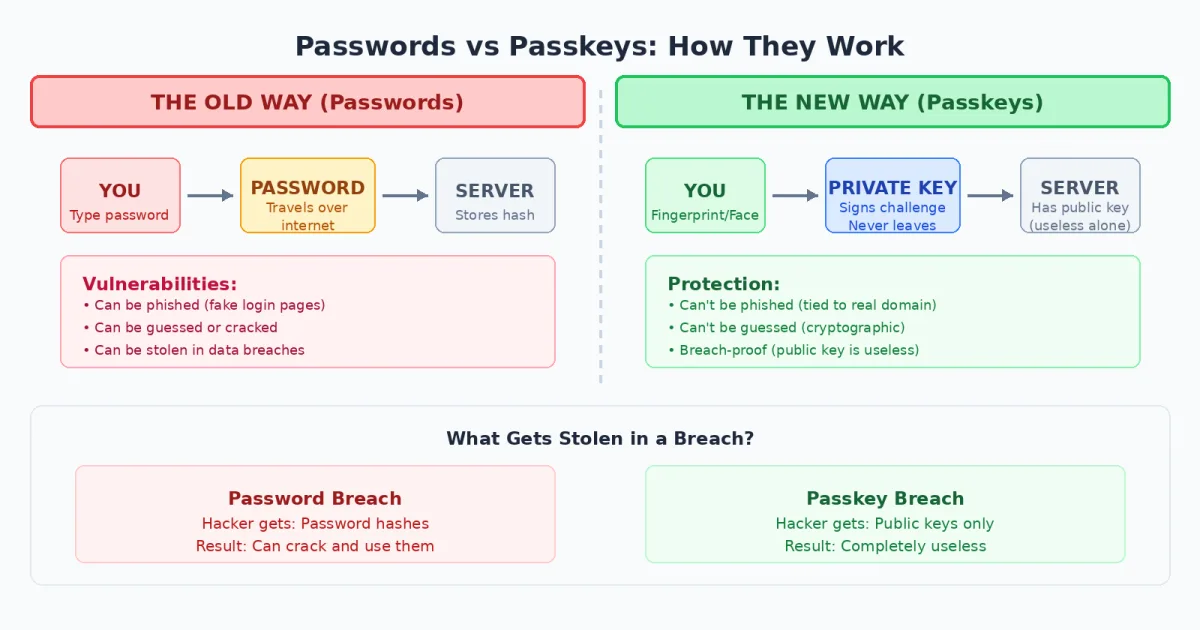
Comparison diagram showing passwords vs passkeys: passwords travel over the internet and can be stolen in breaches, while passkey private keys never leave your device making them phishing-resistant and breach-proof
Passwords travel to servers and can be stolen. Passkeys use cryptography where your private key never leaves your device.

The Old Way (Passwords)

  1. You create a password: "MyD0g$name123"
  2. The website stores a hashed version
  3. When you log in, you type the password
  4. The password travels across the internet to the server
  5. Server checks if it matches

The problem: that password can be guessed, phished, leaked in a breach, or stolen from the website's database.

The New Way (Passkeys)

  1. You create a passkey on a website
  2. Your device generates two cryptographic keys: one public, one private
  3. The private key stays on your device, protected by your fingerprint or face
  4. The public key goes to the website
  5. When you log in, you authenticate locally (fingerprint/face)
  6. Your device uses the private key to sign a challenge from the server
  7. The server verifies the signature with the public key

The magic: your private key never leaves your device. There's nothing to intercept, nothing to phish, nothing to steal from a server breach. Even if hackers get the website's database, they only get public keys, which are useless without the private keys on your devices.

What Using a Passkey Feels Like

Forget the cryptography. Here's the user experience:

  1. Go to login page
  2. Click "Sign in with passkey"
  3. Touch your fingerprint sensor or glance at your phone for Face ID
  4. You're in

No typing. No remembering. Takes about 2 seconds. It's genuinely faster and easier than passwords.

Why Passkeys Are More Secure

Phishing-resistant: A fake website can't steal your passkey because the cryptographic challenge is tied to the real website's domain. Your passkey for google.com won't work on g00gle-login.com.

No reuse problem: Each passkey is unique to one site. There's no "password" to reuse across accounts.

Breach-proof: If the website gets hacked, attackers only get public keys. Without your private key (locked on your device), they're worthless.

Can't be guessed: There's no password to run through a cracking algorithm. The cryptography is essentially unbreakable.

For the technical details on password strength, see our password entropy guide. Passkeys sidestep the entire entropy problem by not using memorable strings at all.

Who's Actually Using Passkeys?

Adoption is real, but concentrated among major platforms.

The Big Three

Google: Made passkeys the default login for personal accounts in late 2023. Passkey authentications grew 352%. If you have a Google account, you can use a passkey right now.

Microsoft: Made passkeys the default for all new accounts in May 2025. Authentication growth jumped 120%. Windows Hello integrates passkeys into the operating system.

Apple: Launched passkeys in 2022 with iOS 16. Syncs passkeys via iCloud Keychain across all Apple devices.

Consumer Apps

Retail drives most passkey traffic. Amazon alone accounts for nearly 40% of all passkey authentications. Other supporters include:

  • PayPal
  • eBay
  • Best Buy
  • Target
  • Home Depot
  • Kayak
  • Uber

Financial Services

Crypto exchange Gemini made passkeys mandatory in May 2025. Their authentications jumped 269%. PayPal, Robinhood, Coinbase, and Mercury support passkeys. Traditional banks are slower but moving.

The Long Tail Problem

Here's the catch: you don't have accounts at 20 companies. You have accounts at 100+ companies. And most of them don't support passkeys.

Your bank? Probably not.

Government portals? Definitely not.

That random e-commerce site you used once? No chance.

Your employer's legacy HR system? Dream on.

This is why you can't go passwordless yet. The infrastructure isn't there for most of your digital life.

The Big Tech Ecosystem Trap

There's something the passkey marketing materials don't emphasize: Apple, Google, and Microsoft all want to be your passkey provider.

When you create a passkey with your iPhone, it goes into iCloud Keychain. When you create one on Chrome, it goes into Google Password Manager. On Windows, it's Windows Hello.

This creates a problem.

Scenario: You Switch Phones

You've been using an iPhone. All your passkeys are in iCloud Keychain. Now you switch to Android.

Your passkeys don't come with you.

You'd need to log into every account (with a backup method) and recreate passkeys on your new device. For 20-30 accounts, that's a painful afternoon.

Scenario: You Use Multiple Ecosystems

You have a work laptop (Windows), a personal MacBook, an Android phone, and an iPad. Your passkeys are scattered across:

  • Windows Hello (work laptop)
  • iCloud Keychain (MacBook, iPad)
  • Google Password Manager (Android)

Logging into the same account from different devices becomes a juggling act.

The Solution: Third-Party Password Managers

This is where modern password managers shine. They've evolved from "password storage" to "credential storage." NordPass, 1Password, Bitwarden, Proton Pass, and Dashlane now store passkeys alongside passwords.

The benefits:

  • Portability: Your passkeys work across all devices and platforms
  • No lock-in: Switch from iPhone to Android, your passkeys come with you
  • One interface: Passwords and passkeys in the same vault
  • Backup and recovery: Lose your phone, log into your manager from anywhere

This is why password managers become MORE important in a passwordless world, not less. They're the neutral ground between competing ecosystems.

For a full breakdown of which manager to choose, see our complete password manager guide.

Why SMS Authentication Is Getting Banned

You might have noticed governments targeting SMS authentication specifically. There's a reason.

The SIM Swapping Problem

SMS authentication has a fatal flaw: your phone number isn't securely tied to you. A hacker can:

  1. Call your carrier pretending to be you
  2. Convince them to transfer your number to a new SIM
  3. Receive all your SMS codes
  4. Access your accounts

This isn't theoretical. SIM swapping attacks have stolen millions in cryptocurrency and compromised high-profile accounts. The FBI and CISA both issued warnings against SMS for authentication.

The Regulatory Response

  • UAE: Banks must eliminate SMS/email OTP by March 31, 2026
  • India: April 1, 2026 deadline
  • Philippines: June 2026 deadline
  • US: USPTO discontinued SMS authentication in May 2025. FINRA followed in July.
  • NIST SP 800-63-4: Now requires phishing-resistant options for multi-factor authentication

If you're still relying on SMS codes as your primary MFA method, it's time to switch to an authenticator app or passkeys.

What You Should Actually Do Right Now

Here's the practical strategy for navigating the password-to-passwordless transition.

Step 1: Get a Password Manager That Supports Passkeys

This is non-negotiable. You need one tool that handles both technologies.

Recommended Password Managers for 2026

NordPass ($1.99/mo)
Full passkey support, cross-platform sync, built-in breach scanner. Best for most people who want everything to just work.

Proton Pass (Free tier available)
Swiss privacy, open source, passkey sync, email aliases. Best for privacy-focused users.

RoboForm ($2/mo)
25 years of security updates, passkey support, budget-friendly. Best for cost-conscious users.

Also worth considering: 1Password (excellent UX, $3/mo), Bitwarden (open source, free tier)

Not sure if you need a password manager at all? Read our complete guide first.

Step 2: Enable Passkeys on Major Accounts

Start with the accounts that already support passkeys and that you use frequently:

  1. Google: Security settings → Passkeys → Create a passkey
  2. Apple: Settings → Passwords → Turn on AutoFill Passwords → Enable passkeys
  3. Microsoft: Account security → Advanced security options → Add a passkey
  4. Amazon: Account → Login & security → Passkeys
  5. PayPal: Settings → Security → Passkeys

When prompted, store the passkey in your password manager (not the browser or OS default) for cross-platform access.

Step 3: Keep Strong Passwords for Everything Else

For the 80+ accounts that don't support passkeys, you still need strong unique passwords. Use your password manager's generator to create random passwords of at least 16 characters.

Or use our free password generator to create passwords right now.

The key: unique password for every account. No reuse. Ever. Your password manager remembers them so you don't have to.

Step 4: Replace SMS with Authenticator Apps

For accounts that offer MFA but not passkeys, switch from SMS to an authenticator app:

  • Google Authenticator
  • Microsoft Authenticator
  • Authy
  • Your password manager's built-in TOTP feature

Authenticator apps generate codes locally on your device. No SIM swapping risk. No interception possible.

Step 5: Prioritize High-Value Accounts

Not all accounts are equal. Focus your security efforts on:

  • Email: Gateway to resetting every other password
  • Banking and finance: Direct access to your money
  • Work accounts: Could cost you your job if compromised
  • Password manager: Keys to the kingdom
  • Social media: Identity theft, reputation damage

These accounts should have the strongest protection: passkeys where available, strong unique passwords, and MFA enabled.

The Hybrid Future

Here's what your login experience will look like for the next several years:

Account Type Authentication Method Timeline
Big Tech (Google, Apple, Microsoft) Passkeys (default) Now
Major retailers (Amazon, eBay, Target) Passkeys (optional) Now
Fintech (PayPal, Coinbase, Robinhood) Passkeys (optional or required) Now
Traditional banks Password + MFA 2026-2028
Government portals Password + MFA 2027-2030
Enterprise/work systems Mixed (depends on IT) Varies
Small websites and services Passwords 2030+

A password manager that handles both passwords and passkeys is your bridge across this transition. One tool adapts as each account adds passkey support.

The Business Case for Passwordless

If you're a business owner or IT decision-maker, here's why the investment makes sense:

  • 91.6% drop in security incidents after passwordless adoption
  • 57.3% fewer help desk calls (no more "forgot password" resets)
  • 12.6 seconds faster login on average
  • 93% passkey login success rate (vs. password fatigue failures)

The ROI comes from reduced breach risk, reduced IT support costs, and improved employee productivity. Compliance deadlines (UAE, India, Philippines, EU) add regulatory pressure.

For small businesses, start with a team password manager like NordPass Business or 1Password Business. They handle both technologies and provide the admin controls you need.

Common Objections (And Reality Checks)

"I don't want to use biometrics"

Fair concern. But your fingerprint or face scan never leaves your device. It's used locally to unlock your passkey, not sent to any server. The website never sees your biometric data.

If you're still uncomfortable, most passkey implementations let you use a PIN as a fallback.

"What if the technology fails?"

Good passkey implementations include backup methods. If your fingerprint sensor breaks, you can use a PIN, pattern, or backup passkey on another device. Don't delete your password manager account just because passkeys exist.

"This seems complicated"

The setup takes about 5 minutes per account. After that, logging in is faster than typing a password. The learning curve is real but short.

"I'll wait until it's standard everywhere"

That's the worst strategy. You'll be waiting 5-10 years while using weak passwords on accounts that could have better security today. Enable passkeys where available now. Keep passwords for the rest. Upgrade incrementally.

The Bottom Line

Passwordless authentication is real. It's more secure than passwords. It's easier to use once set up. And it's coming whether you're ready or not.

But the death of passwords is slow. You have 100+ accounts. Maybe 20 support passkeys today. The rest still need passwords, and will for years.

The winning strategy is hybrid:

  1. Get a password manager that supports both passwords and passkeys
  2. Enable passkeys on major accounts that support them
  3. Keep strong unique passwords for everything else
  4. Use authenticator apps instead of SMS for MFA
  5. Upgrade each account as passkey support arrives

This isn't about choosing between passwords and passkeys. It's about using the right tool for each account, managed in one secure place.

Start with a password manager like NordPass or Proton Pass. Generate strong passwords for your accounts today with our free generator. Then add passkeys as the world catches up.

The future is passwordless. But you have to survive the present first.

Frequently Asked Questions

What is passwordless authentication?

Passwordless authentication lets you prove your identity without typing a password. Instead, you use biometrics (fingerprint or face), passkeys (cryptographic credentials), hardware security keys, or magic links. The goal is eliminating passwords to stop phishing and credential theft.

Are passwords going away in 2026?

Not yet. While 70% of organizations are planning passwordless adoption, 93% of users still use passwords daily. Only a few hundred websites support passkeys. Most banks, government portals, and legacy systems still require passwords. The transition will take 5-10 years minimum.

What is a passkey?

A passkey is a cryptographic credential that replaces your password. When you create one, your device generates a unique key pair. The private key stays on your device (protected by your fingerprint or face), and the public key goes to the website. No password is ever transmitted or stored.

Should I use passkeys or passwords?

Use both. Enable passkeys on sites that support them (Google, Apple, Microsoft, Amazon). Keep strong unique passwords for the accounts that don't support passkeys yet. A modern password manager stores both in one secure vault.

Do password managers support passkeys?

Yes. Major password managers including NordPass, 1Password, Bitwarden, Proton Pass, and Dashlane now store and sync passkeys across devices. This solves the ecosystem lock-in problem and keeps your credentials portable.

What happens to my passkeys if I lose my phone?

It depends on where your passkeys are stored. If they're in iCloud Keychain, they sync to your other Apple devices and can be recovered with your Apple ID. Same for Google Password Manager with your Google account. However, if passkeys are stored only on a single device with no cloud backup, losing it means losing access. For maximum protection, use a third-party password manager that syncs passkeys across all platforms, and always save recovery codes when offered during passkey setup. Store those codes in your password manager or on paper in a secure location.

Is passwordless authentication more secure?

Yes. Passkeys are phishing-resistant, can't be guessed, can't be reused, and can't be leaked in data breaches. Companies using passwordless report 91% fewer security incidents.

Which companies support passkeys?

Google, Apple, Microsoft, Amazon, PayPal, eBay, Best Buy, Kayak, GitHub, Shopify, Coinbase, and many others. The list grows monthly, but most websites still don't support them.

Why are governments banning SMS authentication?

SMS codes can be intercepted through SIM swapping attacks. The UAE, India, and Philippines are banning SMS for banking authentication in 2026. NIST and CISA recommend against SMS. Passkeys and authenticator apps are the replacements.

What should I do right now?

Get a password manager that supports both passwords and passkeys. Enable passkeys on Google, Apple, Microsoft, and Amazon. Keep strong unique passwords for everything else. Enable MFA everywhere. This hybrid approach works now and prepares you for the passwordless future.

📩 Stay Ahead of Password Security Changes

Join thousands of readers who get one jargon-free security tip per month. No spam. No tech-speak. Just practical advice as the password landscape evolves.

Do I Need a Password Manager? The Definitive 2026 Guide
Back to Blog
Reading time: 15 minutes | Last updated: January 4, 2026 | Category: Password Security

Do I Need a Password Manager? (The Definitive 2026 Guide)

Disclosure: Some links in this article are affiliate links. If you purchase through our links, we may earn a commission at no extra cost to you. We only recommend products we genuinely trust.

Quick Answer

Do you need a password manager? Yes, if you have more than 20 online accounts or have ever reused a password. The average person has 100+ accounts. A password manager is the only practical way to use unique, high-entropy passwords for every account without forgetting them or falling victim to credential stuffing attacks.

Our recommendations:

TL;DR: The 60-Second Verdict

Don't have 15 minutes? Here's the bottom line:

  • The Problem: You have 100+ accounts. You can't memorize 100 unique, complex passwords. Nobody can.
  • The Risk: Reusing passwords means one breach compromises everything. Your email, bank, and social media fall like dominoes.
  • The Fix: A password manager generates and remembers uncrackable passwords for every account.
  • The Safety: Zero-knowledge encryption means only you have the master key. Even the company can't see your data.
  • The Verdict: If you have more than 20 accounts and care about your money or identity, you need one.

Jump to what matters to you:

"Isn't one place risky?" → What about passkeys? → Is it worth it for me? → Just tell me which one →

You've heard you need a password manager. Your tech-savvy friend won't shut up about it. Every security article mentions it. But you're not entirely convinced.

Here's the honest answer: most people do need one. But not everyone.

I run SafePasswordGenerator.net, a tool used by thousands of people every month to create strong passwords. I've analyzed over 50,000 breached passwords from real data leaks. I've seen the patterns, the mistakes, and the consequences. So let me tell you straight: who actually needs a password manager, who can skip it, and which ones are worth your money.

No fluff. No scare tactics. Just the truth.

What Does a Password Manager Actually Do?

Strip away the marketing buzzwords and a password manager does three things:

1. Generates strong, random passwords. Like our free generator, but built into the app. One click creates something like K8#mP2$xQn5!vL9@ that no human would ever guess.

2. Stores passwords in an encrypted vault. All your passwords live in one secure location, protected by military-grade encryption. You unlock it with one master password.

3. Auto-fills login forms. When you visit a site, the manager recognizes it and fills in your username and password automatically. No typing, no remembering.

The fancy term you'll hear is "zero-knowledge encryption." In plain English, this means even the password manager company cannot see your passwords. Your data is encrypted on your device before it ever reaches their servers. They literally cannot access it even if they wanted to.

Think of it as a safety deposit box for your digital life. You have the only key.

Our password generator handles step one. A password manager handles the rest.

But Isn't It Risky to Put All My Passwords in One Place?

This is the most common objection I hear. And it's a smart question.

The short answer: a password manager is a single point of protection, not a single point of failure. Here's why.

How Zero-Knowledge Encryption Works

When you save a password in a reputable manager like NordPass, Proton Pass, or Bitwarden, here's what actually happens:

  1. Your password is encrypted on your device before it ever leaves your phone or computer
  2. The encryption key is derived from your master password, which only you know
  3. The encrypted blob is sent to their servers, but the company cannot decrypt it
  4. Even if hackers breach the company's servers, they get encrypted gibberish

This is called "zero-knowledge architecture." The password manager company literally cannot see your passwords. They don't have the key. You do.

Think of it like mailing a locked safe to a storage facility. They can store the safe, but they can't open it. Only you have the combination.

How zero-knowledge encryption works: passwords are encrypted on your device before being sent to servers, and only you have the master password key
Zero-knowledge encryption: your passwords are encrypted before leaving your device. The company only stores encrypted data they cannot read.

What About the LastPass Breach?

In 2022, LastPass suffered a major breach. Hackers stole encrypted password vaults from millions of users. Scary, right?

Here's what actually happened: the attackers got encrypted data. Without each user's master password, they couldn't read anything. Users with strong, unique master passwords (16+ characters) are still safe years later. Users with weak master passwords like "Summer2022!" got cracked.

The lesson isn't "don't use password managers." The lesson is: your master password matters. Use our password generator to create one with at least 16 characters, then memorize it or write it down on paper stored somewhere safe.

For more details on the breach and what it means for you, see our full analysis: Is LastPass Safe in 2026?

The Alternative Is Worse

The numbers don't lie: according to Verizon's 2024 Data Breach Investigations Report, over 80% of hacking-related breaches still involve weak or stolen credentials. A password manager effectively eliminates this attack vector.

Without one, you're choosing between:

  • Reusing passwords: One breach compromises everything
  • Writing them in a spreadsheet: Zero encryption, easily stolen
  • Using browser storage: Limited protection, no breach monitoring
  • Memorizing 100 unique passwords: Impossible for humans

A password manager with a strong master password is objectively safer than any of these alternatives. Security researchers estimate it reduces your credential-based attack surface by over 90%. For the technical details on what makes a password truly strong, see our password entropy guide.

5 Signs You Actually Need a Password Manager

Let's get specific. Here's how to know if you're someone who genuinely needs this tool.

1. You reuse passwords across sites.

Be honest. Is your Netflix password the same as your Amazon password? What about your bank?

About 65% of people reuse passwords. The problem: when one site gets breached (and they do, constantly), hackers take those stolen credentials and try them everywhere else. It's called credential stuffing, and it works embarrassingly well.

One breach becomes twenty breaches overnight.

2. You've been notified of a data breach.

Ever gotten an email saying "Your account may have been compromised"? Check Have I Been Pwned right now. Enter your email. If it shows up in breaches (spoiler: it probably will), your passwords from those sites are floating around hacker forums.

If your email appears in even one breach, you need unique passwords for every account. A manager makes that manageable.

3. You have more than 20 online accounts.

The average person has over 100 online accounts. Email, social media, banking, shopping, streaming, utilities, work tools, apps. The list never stops growing.

Nobody can remember 100 unique, strong passwords. It's not a memory problem. It's a math problem. A password manager solves it.

4. You use browser "remember password" and hope for the best.

Chrome asks if you want to save your password. You click yes. Problem solved, right?

Not quite. I'll explain why in the next section, but browser password storage is convenience-first, security-second. There's a difference.

5. You store passwords in Notes, spreadsheets, or sticky notes.

I've talked to people who keep passwords in Apple Notes. In Google Docs. On paper taped to their monitor.

This is zero encryption. If someone gets access to your device, your phone, your desk, they have everything. A password manager encrypts your vault so even if someone steals your laptop, they can't read your passwords without your master password.

Can't I Just Use Chrome's Built-In Password Manager?

Yes, and it's better than nothing. But here's what you're missing.

Feature Browser (Chrome/Safari) Dedicated Manager
Cross-browser sync No (locked to one browser) Yes
Breach monitoring Basic or none Real-time dark web scanning
Secure sharing No Yes (share with family without revealing the actual password)
Works on all apps No (browser only) Yes (apps, desktop software, everything)
Security audit Basic Full vault health check
Recovery options Tied to Google/Apple account Independent recovery

The core issue: Chrome saves passwords for convenience. A dedicated manager saves them for security. Different goals.

Chrome doesn't warn you when your password appears in a new breach. It doesn't tell you which passwords are weak or reused. It doesn't work when you need to log into a desktop app or your banking app on your phone.

If you only use one browser, only on websites, and never share passwords with family members, Chrome might be fine. For everyone else, it's a halfway solution.

For a deeper comparison of specific managers, see our 1Password vs Bitwarden breakdown.

What About Passkeys? Do I Still Need a Password Manager?

Passkeys are the new kid on the block. Apple, Google, and Microsoft are pushing them hard. They're marketed as "the password killer."

So do passkeys make password managers obsolete? Not yet. Here's the reality in 2026.

What Passkeys Are

A passkey is a cryptographic credential stored on your device. Instead of typing a password, you authenticate with your fingerprint, face, or device PIN. No password to remember. No password to steal.

The technology is genuinely more secure than passwords. Phishing-resistant. No credential stuffing possible.

Why You Still Need a Password Manager

1. Most sites don't support passkeys yet. As of early 2026, only a few hundred major sites support passkeys. You have 100+ accounts. The math doesn't work. You still need passwords for the vast majority of your accounts.

2. Password managers store passkeys too. Modern password managers like 1Password, Bitwarden, NordPass, and Proton Pass now store and sync passkeys across devices. They're evolving with the technology, not being replaced by it.

3. Big Tech wants to lock you into their ecosystem. Apple, Google, and Microsoft each want your passkeys stored in their systems. That's great until you switch from an iPhone to Android, or need to log in from a Windows PC when your passkeys live in iCloud. A dedicated password manager works across all platforms and ecosystems. Your credentials stay portable.

4. Passkeys have a recovery problem. What happens if you lose your phone? With passwords stored in a manager, you log in from any device. With passkeys tied to a single device, recovery is complicated. Password managers solve this by syncing passkeys across your devices.

5. Some accounts will always need passwords. Legacy banking systems, government portals, enterprise software. These move slowly. Passwords aren't going away in our lifetime.

The Bottom Line on Passkeys

Passkeys are the future. Password managers know this and are adapting. The smart move: get a password manager now that supports both passwords and passkeys. You'll be covered for 2026 and beyond.

When You Can Skip the Password Manager

I'm not here to convince everyone. Some people genuinely don't need this tool.

You might be fine without one if:

  • You only have a handful of accounts and can genuinely remember unique, strong passwords for each. Some people have this ability. Most don't, but if you're one of them, respect.
  • You use passkeys exclusively and all your important services support them. Passkeys are the future, but we're not there yet. Most sites still require passwords.
  • You're fully in Apple's ecosystem and iCloud Keychain meets all your needs. If you only use Safari, only use Apple devices, and don't need breach monitoring or secure sharing, Keychain is solid.
  • You have a photographic memory. I'm half joking, but some people genuinely can remember 50 random strings. If that's you, carry on.

Even in these cases, a free password manager adds security at zero cost. But I won't pretend it's mandatory for everyone.

Is a Password Manager Worth It For...

Not everyone has the same needs. Here's the honest breakdown for specific situations.

For Families

Verdict: Absolutely worth it.

You're sharing Netflix, Disney+, the home WiFi password, utility account logins, the Amazon account. How do you share these securely?

Options without a manager: text the password (insecure), write it on a sticky note (lost constantly), or just tell everyone to use the same password for everything (disaster waiting to happen).

Family plans from NordPass, 1Password, and Bitwarden let you share specific passwords with family members without revealing the actual password. Each person has their own vault plus access to shared family credentials. When you change the Netflix password, everyone automatically gets the update.

Cost: about $5/month for the whole family. Less than one streaming subscription.

For Seniors

Verdict: Potentially life-changing.

The "I forgot my password" lockout cycle is real. Social Security portal, Medicare, banking, pharmacy refills. Getting locked out of these accounts isn't just annoying. It can delay medication, payments, and benefits.

A password manager eliminates the lockout problem entirely. One master password unlocks everything. No more "Forgot Password" emails. No more calling customer service.

The key: keep the master password written on paper in a secure location (not next to the computer). And use a manager with emergency access features, so a trusted family member can access accounts if needed.

Setup help: most password managers have simple interfaces. NordPass and Proton Pass are particularly beginner-friendly. A 30-minute setup session with a family member gets everything working.

For Small Business Owners

Verdict: Non-negotiable.

You're handling client data, payment systems, business banking, vendor accounts. A breach doesn't just hurt you. It hurts your customers and potentially exposes you to legal liability.

Business password managers add features you need:

  • Role-based access: Give employees access only to passwords they need
  • Audit logs: See who accessed what and when
  • Offboarding: Revoke access instantly when someone leaves
  • Policy enforcement: Require strong passwords and MFA

The alternative, sharing passwords in Slack or a Google Doc, is how breaches happen. One disgruntled ex-employee, one compromised laptop, and you're explaining to clients why their data is on the dark web.

Cost: $4-8 per user per month. Insurance against a reputational catastrophe.

For "I Only Have a Few Accounts" People

Verdict: Probably still yes, but you can wait.

If you genuinely have fewer than 15 accounts and can remember unique passwords for email, banking, and social media, you're in a small minority. Respect.

But count again. Email (work and personal), banking (checking, savings, credit cards), social media (Facebook, Instagram, LinkedIn, Twitter/X), streaming (Netflix, Spotify, YouTube), shopping (Amazon, eBay, retail stores), utilities (electric, gas, water, internet, phone), government (IRS, DMV, Social Security), healthcare (insurance, pharmacy, patient portals)...

Most people who think they have 15 accounts actually have 50+. Do the inventory. Then decide.

Password Managers I Actually Recommend

I have affiliate partnerships with some of these companies. I'm disclosing that upfront. But I only recommend products I'd use myself, and I'll tell you exactly who each one is best for.

NordPass (Best for Most People)

If you want one recommendation and don't want to think about it, this is it.

NordPass comes from the team behind NordVPN, one of the most trusted names in online security. The interface is clean and modern. Setup takes five minutes. It works on every device and browser.

The standout feature is the built-in Data Breach Scanner. It checks if your passwords have appeared in known breaches and alerts you to change them. This alone is worth the price.

Best for: People who want set-it-and-forget-it security without complexity.

Price: $1.99/month when you pay annually.

Downside: No free tier, but they offer a 30-day money-back guarantee.

Try NordPass and scan for breached passwords

Switch to NordPass Before Your Next Renewal

NordPass costs $17.16/year — less than Bitwarden Premium — and includes dark web monitoring Bitwarden still does not offer. Free 30-day trial, no credit card required.

Try NordPass Free for 30 Days

Affiliate link. SPG earns a commission at no extra cost to you.

Proton Pass (Best Free Option)

If you want to try before you commit, or if privacy is your top priority, Proton Pass is the answer.

Proton is a Swiss company, which means your data falls under Swiss privacy laws, some of the strictest in the world. The app is open source, so security researchers can verify the code. And the free tier is genuinely useful, not a crippled demo.

The standout feature is hide-my-email aliases. Proton Pass generates unique email addresses that forward to your real inbox. When a site gets breached or starts spamming you, just delete the alias. Your real email stays private.

Best for: Privacy-focused users and anyone who wants to test a password manager before paying.

Price: Free tier available. Premium is $4/month.

Downside: Newer product with a smaller ecosystem than competitors like 1Password.

Start with Proton Pass free tier

RoboForm (Best Budget Option)

RoboForm has been around for over 25 years. That's ancient in tech terms, and it's a feature, not a bug. They've had decades to find and fix security vulnerabilities. The product is rock solid.

The price is the main selling point: $24 per year. That's two dollars a month. Less than a single coffee.

Best for: Budget-conscious users who want proven, reliable security without premium pricing.

Price: $24/year ($2/month).

Downside: The interface feels dated compared to slicker options like NordPass. Function over form.

Get RoboForm for $24/year

Quick Comparison

Manager Best For Price Free Tier Breach Monitoring
NordPass Most people $1.99/mo No Yes
Proton Pass Privacy-focused $4/mo Yes No
RoboForm Budget buyers $2/mo Limited No

One more worth mentioning: Bitwarden is excellent and fully open source. I don't have an affiliate relationship with them, but if open source is non-negotiable for you, check them out.

How to Set Up a Password Manager (5 Minutes)

This isn't complicated. Here's the entire process.

Step 1: Pick one from above. NordPass if you want the best overall experience. Proton Pass if you want free. RoboForm if you want cheap. Bitwarden if you want open source.

Step 2: Install the browser extension and mobile app. This is where the magic happens. The extension auto-fills passwords on websites. The app syncs everything to your phone.

Step 3: Import your existing passwords. Chrome, Safari, and Firefox all let you export saved passwords as a CSV file. Go to your browser settings, find the password section, export, then import that file into your new manager. Takes two minutes.

Step 4: Set a strong master password. This is the ONE password you need to remember. Make it count. Consider using a memorable passphrase for your master password. Four random words like "correct-horse-battery-staple" are easier to remember and harder to crack than something like "Tr0ub4dor&3". Use our password generator if you prefer random characters, and set it to 16+ characters minimum.

Step 5: Start using it. Next time you log into any site, your manager will offer to save the password. Say yes. Over time, update your weak and reused passwords to strong generated ones. The manager will remind you which ones need attention.

That's it. Five steps, five minutes, and your password security jumps from "hoping for the best" to "actually protected."

The Bottom Line

If you reuse passwords, store them in your browser, or have more than a handful of accounts, yes, you need a password manager.

The real cost of skipping this: one breach, one reused password, and suddenly your email, bank, and social media accounts are all compromised. I've seen it happen. It's ugly.

A password manager costs less than one coffee per month. Some are completely free. The peace of mind is worth it.

Start with a free option like Proton Pass to test the waters, or go all-in with NordPass for the complete package.

Either way, stop reusing passwords. Your future self will thank you.

Frequently Asked Questions

Do I really need a password manager?

If you have more than 20 online accounts or reuse passwords across sites, yes. A password manager generates, stores, and auto-fills unique passwords for every account so you don't have to remember them.

Are password managers safe?

Yes. Reputable password managers use zero-knowledge encryption, meaning even the company cannot see your passwords. Your data is encrypted on your device before it ever reaches their servers.

What happens if my password manager gets hacked?

With zero-knowledge encryption, hackers would only get encrypted data they cannot read without your master password. This is what happened in the 2022 LastPass breach. Users with strong master passwords remained protected.

Is putting all my passwords in one place risky?

A password manager is a single point of protection, not a single point of failure. With zero-knowledge encryption and a strong master password, your vault is more secure than reusing passwords or storing them in spreadsheets.

Can I just use Chrome to save passwords?

Chrome's password manager is better than nothing, but it lacks cross-browser sync, real-time breach monitoring, and secure sharing features that dedicated managers provide. It's convenience-first, not security-first.

Do I still need a password manager if I use passkeys?

Yes, for now. As of 2026, only a few hundred sites support passkeys. You still need passwords for most accounts. Modern password managers now store and sync passkeys too.

What's the best free password manager?

Proton Pass offers the best free tier with unlimited passwords, hide-my-email aliases, and Swiss privacy protection. Bitwarden is another solid free option if you prefer open source.

How much does a password manager cost?

Most premium password managers cost $2 to $5 per month. RoboForm is the most affordable at $24 per year, which works out to $2 per month.

Is a password manager worth it for families?

Absolutely. Family plans let you securely share passwords for Netflix, utilities, WiFi, and other shared accounts without revealing the actual password. Family plans cost about $5/month for up to 6 users.

What if I lose my master password?

Most password managers offer recovery options like emergency contacts, recovery keys, or account recovery codes. Write your master password on paper and store it securely. Some managers like 1Password provide a physical Emergency Kit.

Get the weekly password security brief

One breach, one fix, every week. No fluff.