🔒 VPN Buyer's Guide 2026: Setup, Privacy & Streaming Tips
Honest Comparison & Beginner-Friendly Setup for All Devices
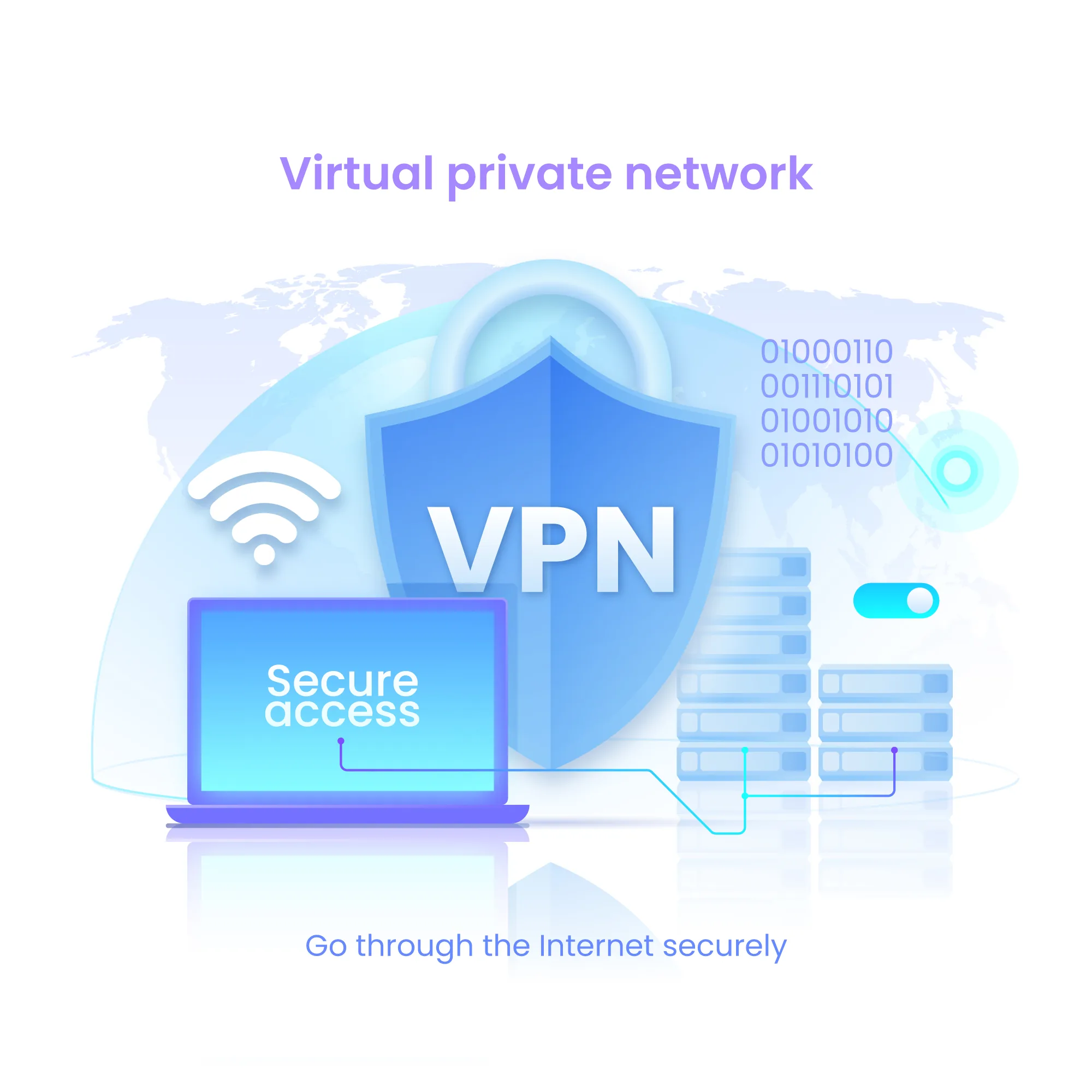
Featured Answer: A VPN (Virtual Private Network) creates an encrypted tunnel between your device and the internet, routing your traffic through a remote server to hide your IP address and protect your data from snooping on public networks. To set one up: (1) choose a reputable provider with audited no-logs policies, (2) download their app for your device, (3) log in and connect to a nearby server, (4) enable the kill switch to prevent data leaks if connection drops. VPNs help with public Wi-Fi security and accessing region-locked content, but won't make you anonymous or stop phishing attacks.
TL;DR
- What VPNs do: Encrypt your internet traffic and hide your IP address by routing through remote servers - useful for public Wi-Fi security, accessing region-locked content, and bypassing some network restrictions
- What VPNs don't do: Make you anonymous, stop ads/trackers on logged-in accounts, protect against phishing or malware, or guarantee access to all streaming services
- Who needs one: Frequent travelers using hotel/airport Wi-Fi, people in countries with internet restrictions, streamers wanting access to different content libraries, remote workers on untrusted networks
- Quick setup: Install app → log in → connect to nearest server → enable kill switch → verify with IP/DNS leak check (takes 5 minutes)
- How to choose: Look for independently audited no-logs policies, WireGuard or OpenVPN protocols, kill switch, good refund window (30+ days), and honest streaming compatibility claims
- Realistic expectations: Expect 10-30% speed reduction, occasional streaming blocks requiring server switches, and the need to disable VPN for some banking/payment sites
Table of Contents
- → Who This Guide Is For
- → What Is a VPN?
- → Is a VPN Legal?
- → When to Use a VPN
- → VPN Buying Checklist
- → Provider Comparison
- → Windows Setup
- → macOS Setup
- → Android Setup
- → iOS Setup
- → Router Setup (Advanced)
- → Streaming Tips
- → Travel & Public Wi-Fi Tips
- → Troubleshooting
- → FAQ
- → Glossary
- → Security Basics
Who This Guide Is For
Total Beginner
You've heard the term VPN but don't know what it means or whether you need one. You want plain-English explanations without technical jargon and clear guidance on whether a VPN solves problems you actually have.
Quick decision helper:
- If you regularly use public Wi-Fi at cafes, airports, or hotels → VPN helps protect your data
- If you're not traveling and mainly use home Wi-Fi → VPN is optional unless you want streaming flexibility
- If you're confused by marketing claims → this guide cuts through the hype
Privacy-Curious
You understand internet basics and worry about who can see your online activity. You want to know what VPNs can and can't do for privacy, and whether they're worth the cost and complexity.
Quick decision helper:
- VPNs hide your activity from your internet provider and local network but not from sites you log into
- Your threat model matters: casual privacy (yes), avoiding targeted surveillance (limited help), full anonymity (no)
- Audited no-logs policies are essential - we'll show you how to verify them
Streaming & Traveler
You want to watch your home country's streaming services while traveling, or you travel to places with restricted internet access. You need practical setup help and realistic expectations about what works.
Quick decision helper:
- Streaming services actively block VPNs; success varies by provider and changes frequently (we'll be honest about this)
- Some countries restrict or monitor VPN use - research local laws before traveling
- Look for providers with obfuscation features and multiple server locations in your target regions
What Is a VPN?
A VPN (Virtual Private Network) creates an encrypted tunnel between your device and the internet, like mailing a letter inside a locked box instead of a transparent envelope. Your internet traffic goes through this tunnel to a VPN server in another location, then out to the wider internet. This hides your IP address (your device's internet identifier) and encrypts your data so people snooping on your network can't read it.
Important distinctions:
Privacy vs. Security vs. Anonymity: A VPN provides privacy from your internet service provider and local network operators, and security on untrusted Wi-Fi networks by encrypting your data. It does not provide true anonymity - websites you log into still know who you are, and your VPN provider can see your traffic unless they have audited no-logs policies.
What a VPN doesn't do: It won't stop websites from tracking you when you're logged in (Facebook, Google, Amazon still know it's you), won't block ads or malware by itself, won't protect you from phishing emails, and won't make illegal activity untraceable.
Key Terms Explained
- Encryption: Scrambling your data so only you and the VPN server can read it. Modern VPNs use AES-256 encryption, which is computationally infeasible to break.
- Protocol: The method used to create the encrypted tunnel. WireGuard is newer and faster; OpenVPN is older but widely audited and trusted. Both are good choices.
- Server: A computer owned by the VPN company that routes your traffic. Connecting to servers physically near you gives better speeds; connecting to servers in other countries makes it appear you're browsing from there.
- Kill switch: Safety feature that blocks all internet traffic if your VPN connection drops, preventing accidental exposure of your real IP address.
- Split tunneling: Lets you route some apps through the VPN (like your browser) while others connect directly (like your banking app), balancing security with convenience.
Is a VPN Legal?
VPNs are legal in most countries, including the United States, Canada, the United Kingdom, European Union nations, and Australia. They're common tools for businesses protecting remote workers and individuals securing their internet traffic.
Service terms of service: Using a VPN to bypass geographic restrictions on streaming services (Netflix, Hulu, BBC iPlayer) typically violates those services' terms of service, though enforcement usually means temporary blocking rather than account termination. Understand that you're choosing to circumvent their policies.
Workplace and school networks: Many employers and educational institutions prohibit VPN use on their networks or devices because it bypasses their security monitoring. Check your organization's acceptable use policy before connecting.
When You Should (and Shouldn't) Use a VPN
✅ Public Wi-Fi Protection
Use a VPN when: Connecting to Wi-Fi at cafes, airports, hotels, or any network you don't control. Public networks are easy targets for eavesdropping because traffic often isn't encrypted between your device and the router.
Why it helps: VPN encryption prevents other people on the network from intercepting your passwords, messages, or browsing activity. This is the single most valuable VPN use case for typical users.
✅ Streaming & Region-Locked Content
Use a VPN for: Accessing your home streaming subscriptions while traveling abroad, or watching content only available in other regions.
❌ When a VPN Doesn't Help ("Not a Magic Cloak")
VPNs don't solve these problems:
- Ad tracking and surveillance capitalism: If you're logged into Facebook, Google, Amazon, or other services, they track you based on your account, not your IP address. VPNs don't prevent this.
- Phishing and social engineering: VPN or not, clicking a malicious link or giving credentials to a fake site compromises your security. You need awareness and good habits [link to phishing protection guide].
- Physical device security: If your device has malware, a VPN won't protect you. The malware can monitor activity before encryption happens or log keystrokes directly.
How to Choose: VPN Buying Checklist
Use this checklist to evaluate any VPN provider. Not every feature matters equally for every person - focus on items relevant to your use case.
✓ Independent No-Logs Audits & Transparency Reports
Why it matters: "No-logs" claims are worthless without third-party verification. Look for recent audits (within 2 years) from reputable security firms that examined actual infrastructure, not just policies.
What to check: Published audit reports from firms like Cure53, Deloitte, PwC, or VerSprite. Transparency reports showing data requests received and whether any user data was provided.
✓ Protocol Options & Security Features
What to look for:
- WireGuard: Newest, fastest, modern cryptography, simpler code (easier to audit)
- OpenVPN: Older, widely tested, highly configurable, slightly slower
- Avoid: PPTP (obsolete and insecure), L2TP/IPsec alone (outdated)
✓ Kill Switch (Essential)
Why it matters: If your VPN disconnects unexpectedly, a kill switch blocks all internet traffic to prevent your real IP address from leaking.
What to verify: Test it by disabling your network adapter while connected to the VPN - you shouldn't be able to browse.
✓ Leak Protection (DNS, IPv6, WebRTC)
Why it matters: Leaks expose your real IP address or DNS queries even while connected to the VPN, defeating the purpose.
How to test: Use leak test websites after connecting to verify nothing leaks (we'll provide testing steps in setup sections).
Windows Setup
- Download the VPN app from the provider's official website (not third-party sources). Most providers support Windows 10 and 11.
- Install and launch the application. Grant administrator permissions when prompted - VPNs need system-level access to route traffic and implement kill switches.
- Log in with your credentials provided during signup. Enable "Remember me" for convenience, but only on personal devices.
- Choose a server location. For best speeds, select the nearest server or use "Quick Connect" / "Fastest Server" options.
- Enable the kill switch. Look in Settings → Security or Connection. Turn on "Kill Switch" or "Network Lock."
- Optional: Configure split tunneling. Settings → Split Tunneling lets you exclude specific apps from the VPN.
- Connect and verify:
- Visit
whatismyipaddress.comto check your displayed IP matches the VPN server location - Visit
dnsleaktest.comand run Extended Test to ensure no DNS leaks
- Visit
macOS Setup
- Download from the provider's website or Mac App Store (if available).
- Install the application. Open the .dmg file, drag the app to Applications, and launch. macOS will ask for admin password to install network extensions.
- Grant necessary permissions. System Preferences → Security & Privacy → Allow VPN configuration when prompted.
- Log in with your account credentials.
- Select a server. Use Quick Connect for speed or manually choose based on your needs.
- Enable kill switch. Preferences → Security → "Kill Switch" or similar option.
- Connect and test:
- Confirm connection status in the app
- Check IP:
whatismyipaddress.com - Check for leaks:
ipleak.net(checks DNS, WebRTC, and IPv6 leaks)
Android Setup
- Download from Google Play Store using the provider's official app. Don't sideload VPN APKs from unknown sources.
- Install and open the app. Android will prompt for VPN configuration permission - this is standard.
- Enable always-on VPN and kill switch:
- Android Settings → Network & Internet → VPN
- Tap the gear icon next to your VPN app
- Enable "Always-on VPN" and "Block connections without VPN"
- Connect and verify at
whatismyipaddress.com
iOS Setup
- Download from the App Store using the official provider app.
- Install and open. iOS will request permission to add VPN configurations - tap Allow.
- Install VPN profile: Tap "Install Profile" when prompted, enter your device passcode, and confirm.
- Select server and connect. Use Quick Connect or choose manually from the server list.
- Configure On Demand: Settings → VPN → Information (i) icon → Connect On Demand. This auto-connects when joining untrusted Wi-Fi networks.
- Verify connection: VPN status shows in status bar (key icon or "VPN" text). Test at
whatismyipaddress.com
Reputable Providers to Research (As of October 2025)
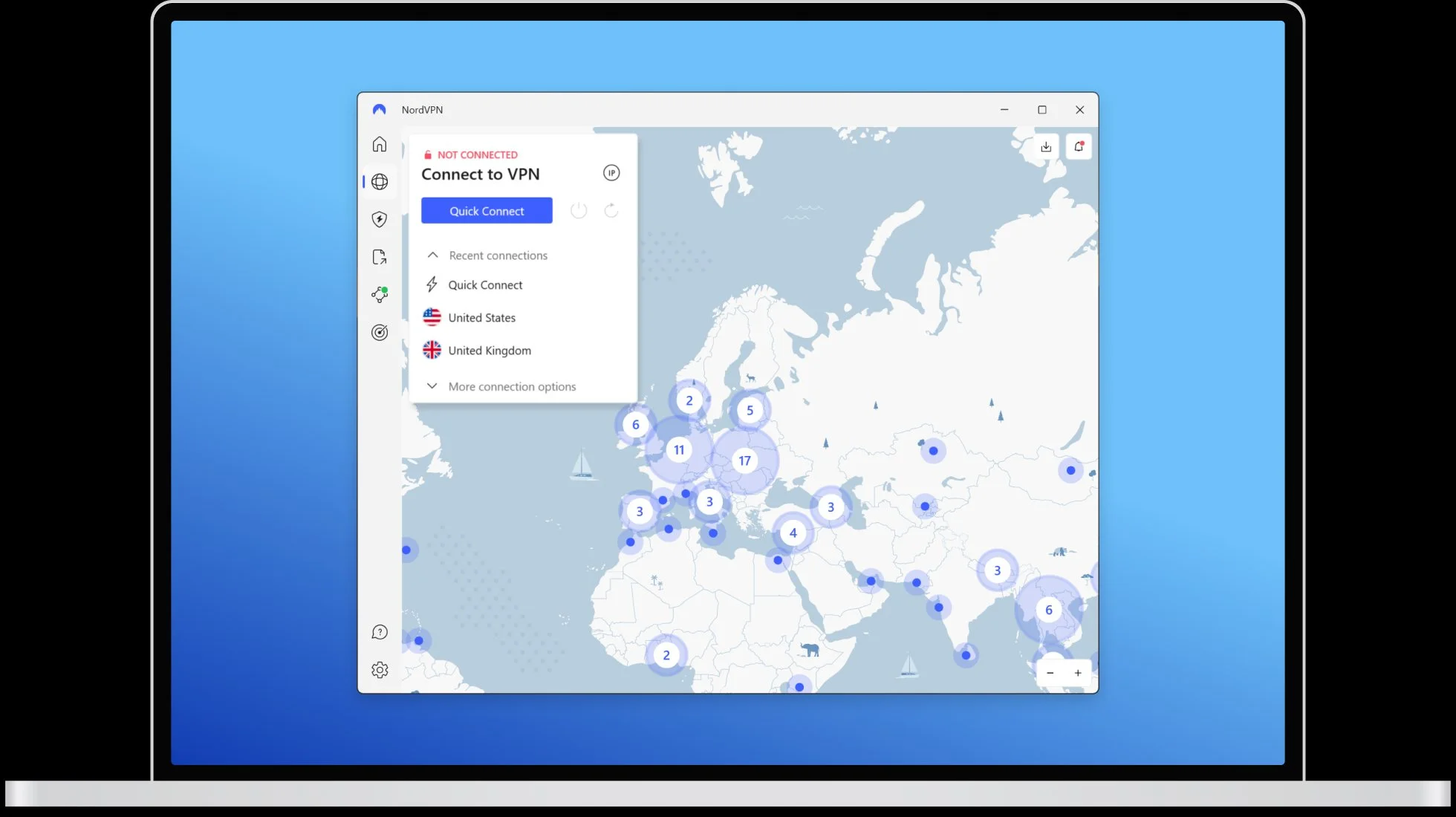
Our VPN Pick: NordVPN
5,500+ servers across 60 countries. Zero-log policy independently audited. Kill switch on all platforms. The most trusted VPN brand for a reason.
Affiliate link. SPG earns a commission at no extra cost to you.
Try NordVPN →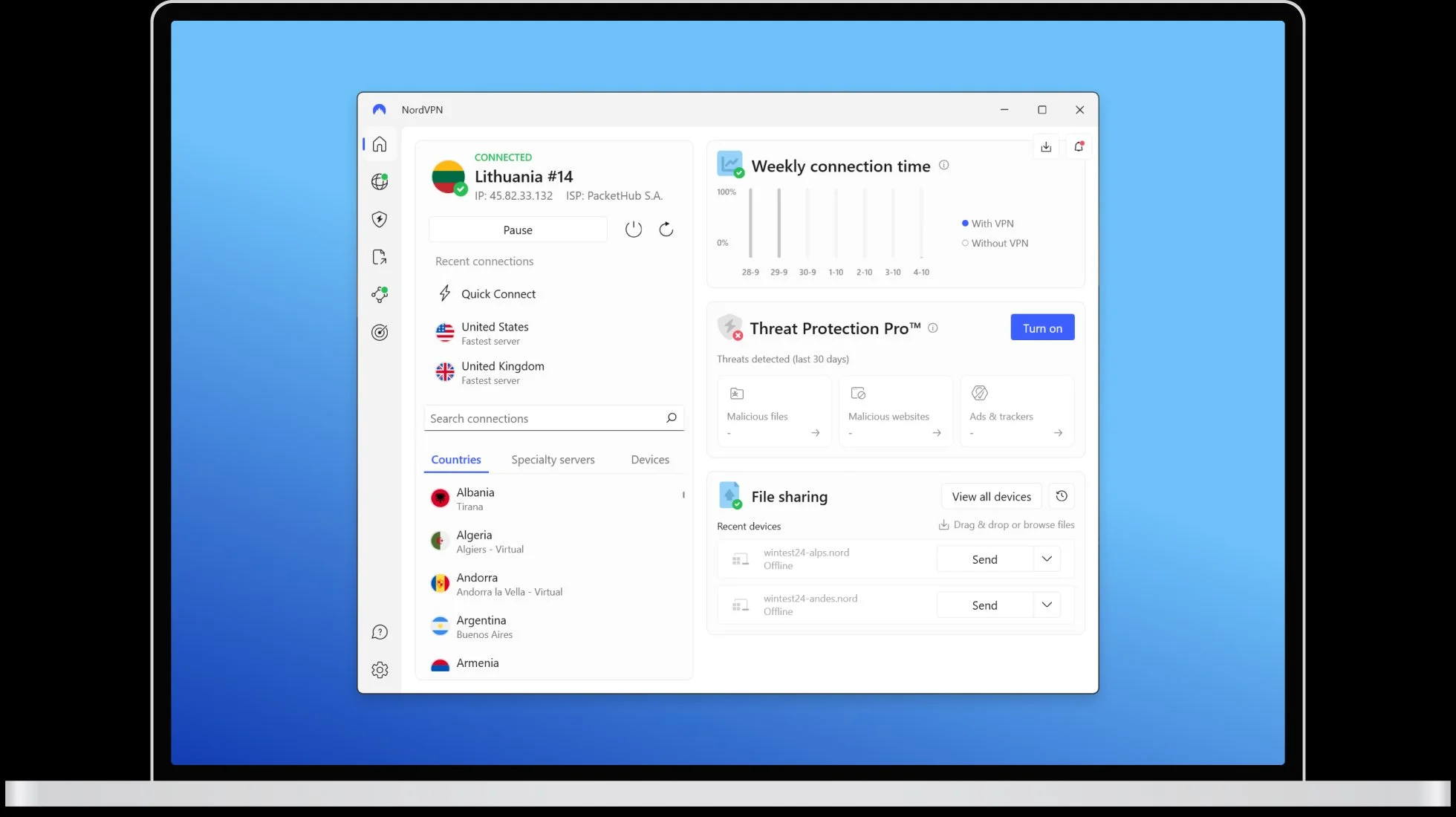
Budget Pick: Surfshark
Unlimited devices on one subscription. Good value for families and multi-device households.
Try Surfshark →Privacy Pick: Proton VPN
Swiss privacy laws, open source, independently audited. Best for journalists and high-risk users.
Try Proton VPN →Affiliate links: we earn a commission at no cost to you.
| Provider | Known For | Recent Audit | Jurisdiction | Approx Price |
|---|---|---|---|---|
| Mullvad | Privacy focus, anonymous accounts | 2024 (Cure53) | Sweden | ~$5/mo |
| NordVPN | Streaming reliability, large server network | 2024 (Deloitte) | Panama | ~$4/mo |
| Proton VPN | Privacy, open source, Swiss privacy laws | 2026 (Securitum) | Switzerland | ~$5/mo |
How to evaluate any provider: Look for recent independent audits, published transparency reports, clear no-logs policies, and honest user reviews from sources like Reddit r/VPN. Test during refund windows with your actual use cases.
What Each Provider Does Best (and Worst)
Mullvad
Best for: Maximum privacy advocates who value anonymity over convenience. Anonymous accounts (no email required), accepts cash payments, fixed €5/month pricing (no discounts or sales pressure).
Notable limitations: Not optimized for streaming - no dedicated streaming servers and frequently blocked by Netflix/Hulu. No built-in ad blocking. Fewer server locations than competitors (~900 servers vs 5,000+).
Unique features: Account numbers instead of email logins, RAM-only servers, owns physical hardware in key locations.
NordVPN
Best for: Users prioritizing streaming reliability and server variety. Large network (5,500+ servers in 60+ countries) with dedicated streaming servers frequently updated to evade blocks.
Notable limitations: 2018 server breach (since addressed), more expensive month-to-month ($12.99), aggressive upselling of additional products during checkout.
Unique features: Specialty servers (Double VPN, Onion over VPN, P2P), built-in threat protection, meshnet for direct device connections.
Proton VPN
Best for: Users wanting Swiss privacy laws, open-source transparency, and integration with Proton ecosystem (Mail, Drive, Calendar). Strong free tier for testing.
Notable limitations: Higher cost on paid tiers ($5-10/month vs $3-4 for competitors), fewer servers than NordVPN, streaming success varies by region.
Unique features: Free tier with no data caps (speed-limited), Secure Core (traffic routed through privacy-friendly countries), NetShield ad blocker, complete open-source codebase.
Router or Whole-Home VPN Setup (Advanced)
Why consider this: Protects all devices on your network automatically, including smart TVs, game consoles, and IoT devices that can't run VPN software.
Important trade-offs:
- All devices share the same VPN connection (can't split tunnel per device easily)
- 10-20% additional speed reduction due to router processing overhead
- More complex troubleshooting if issues arise
- Some devices/services may break (gaming, video calls, smart home)
Requirements:
- Router that supports VPN clients (check compatibility list for popular models: Asus RT-series, Netgear Nighthawk, or flash with DD-WRT/Tomato firmware)
- Your VPN provider's router configuration files (OpenVPN config files or router-specific instructions)
- Basic networking knowledge or patience following detailed guides
High-level steps:
- Check provider documentation for router setup guides specific to your router model
- Download configuration files for OpenVPN or WireGuard from your VPN provider's website
- Access router admin panel (typically 192.168.1.1 or 192.168.0.1 in browser)
- Navigate to VPN client section (location varies by router brand/firmware)
- Upload config files or manually enter settings (server address, protocol, credentials)
- Enable the VPN connection and verify all devices route through it
- Test speed and compatibility with your most-used devices and services
Streaming Setup Tips
SmartDNS vs. Full VPN
- SmartDNS: Doesn't encrypt, just changes your apparent location by routing DNS through other countries. Faster for streaming (no encryption overhead) but provides zero privacy. Some providers include this free.
- Full VPN: Encrypts all traffic, slower, but more private. Use for general browsing and streaming combined.
Optimizing for streaming:
- Clear cookies and cache before connecting to VPN and accessing streaming services. Sites often remember your actual location.
- Use browser incognito/private mode for streaming to prevent location cookies from persisting.
- Try different server cities in your target country. Some streaming services block specific data center IP ranges. If London doesn't work, try Manchester or Birmingham.
- Check for dedicated streaming servers. Many providers label certain servers as optimized for Netflix, Hulu, etc. Use these first.
- Contact support if consistently blocked. Providers update server IPs to evade blocks - support can direct you to currently working servers.
Travel & Public Wi-Fi Tips
Before you leave:
- Test your VPN at home across all devices you'll travel with. Confirm functionality, speed, and that you remember login credentials.
- Download offline setup files and instructions in case VPN website is blocked at your destination.
- Research local laws regarding VPN use in your destination country.
- Enable obfuscation/stealth mode in VPN settings before arrival in countries with restrictions.
Connecting to hotel/airport Wi-Fi:
- Connect to Wi-Fi first, then VPN. Most captive portals (login pages) require direct connection before you can reach the internet.
- Load the captive portal. Open browser and complete any required login/agreement before enabling VPN.
- Enable VPN immediately after getting internet access and before browsing anything sensitive.
- Set "Connect on Demand" or "Auto-connect on untrusted networks" in your VPN settings to automate protection.
Battery and data considerations:
- Battery drain: VPNs increase battery usage by 5-15% due to constant encryption. Carry a power bank or portable charger for travel days.
- Data usage: VPN encryption adds 10-20% data overhead (a 100 MB download uses 110-120 MB through VPN). Monitor usage on metered connections.
Glossary (Plain English)
AES (Advanced Encryption Standard): Military-grade encryption algorithm used by VPNs. AES-256 is the strongest variant, using 256-bit keys that are practically impossible to crack.
DNS (Domain Name System): Translates website names (google.com) into IP addresses. DNS queries can reveal your browsing history, so VPNs route them through encrypted tunnels.
DNS Leak: When your DNS queries bypass the VPN and go to your ISP's servers, revealing what sites you visit despite being connected to a VPN.
Kill Switch: Security feature that blocks all internet traffic if VPN connection drops, preventing data leaks while reconnecting.
No-Logs Policy: Provider claim that they don't record your browsing activity, connection times, or traffic data. Only trustworthy if verified by independent audits.
Obfuscation (Stealth Mode): Disguises VPN traffic as regular HTTPS traffic to evade detection by firewalls, ISPs, or governments trying to block VPN use.
OpenVPN: Open-source VPN protocol that's been extensively audited and trusted. Reliable but slower than newer protocols.
Protocol: The method used to create encrypted VPN tunnels. Common protocols: WireGuard (newest, fastest), OpenVPN (established, trusted), IKEv2 (good for mobile).
Split Tunneling: Lets you choose which apps/sites go through the VPN and which connect directly. Example: VPN for browser, direct for banking app.
WebRTC (Web Real-Time Communication): Browser feature for video/voice calls that can leak your real IP address even with VPN active. VPNs should block it.
WireGuard: Modern VPN protocol launched in 2020. Faster, more efficient, and simpler code (easier to audit) than OpenVPN. Quickly becoming industry standard.
Troubleshooting
Slow Speeds
Likely causes and fixes:
- Server distance: Connect to geographically closer servers
- Protocol choice: Switch from OpenVPN to WireGuard for faster speeds
- Server congestion: Try less-obvious cities or check server load indicators
When to accept reduced speed: Some reduction (10-30%) is normal and worthwhile for the security.
Service Blocking VPN
Streaming services, banking, or payment sites blocking access:
- Disable VPN temporarily for that specific transaction
- Use split tunneling to exclude the banking/payment app from VPN routing
- Try different servers - some VPN server IPs are flagged; others aren't yet
- For streaming: Clear cookies, try incognito mode, and connect to different servers in target country
DNS or IP Leaks
Test for leaks:
- IP leak:
whatismyipaddress.com(should show VPN server location) - DNS leak:
dnsleaktest.com(all servers should belong to VPN provider) - WebRTC leak:
ipleak.net(check for local IP exposure)
Enable leak protection: VPN Settings → DNS leak protection, IPv6 leak protection, WebRTC blocking.
VPN Won't Connect at Hotel/Airport
VPN blocked by network restrictions:
- Try different protocols: Switch to IKEv2, L2TP, or WireGuard - sometimes only specific protocols are blocked
- Enable obfuscation/stealth mode to disguise VPN traffic as regular HTTPS
- Use different ports: Try port 443 (standard HTTPS) which is rarely blocked
- Complete captive portal first: Connect to Wi-Fi, load the hotel login page, accept terms, THEN enable VPN
- Contact hotel IT: Business travelers often need VPN access - front desk may provide exemption or workaround
Battery Drain on Mobile
VPN using excessive battery:
- Use WireGuard protocol (more battery-efficient than OpenVPN if available)
- Disable "Always-on VPN" when not needed (e.g., when at home on trusted Wi-Fi)
- Use split tunneling to route only essential apps through VPN
- Check battery optimization: Ensure VPN app isn't being killed by aggressive battery savers
- Accept some drain: VPN encryption inherently uses more battery (5-15% typical). Carry a portable charger if needed
Can't Log in to Banking/Payment Sites
Sites blocking VPN access for fraud prevention:
- Best solution: Split tunneling. Configure VPN to exclude your banking apps BEFORE you need them (Settings → Split Tunneling → Add banking app to exclusion list)
- Temporary workaround: Disconnect VPN, complete transaction, reconnect VPN
- Long-term option: Purchase dedicated IP address from VPN provider ($3-5/month extra). Banks recognize and trust consistent IPs
- Contact bank: Some banks whitelist VPN provider IP ranges for verified customers
Frequently Asked Questions
Do I really need a VPN at home?
For most people on secure home Wi-Fi, a VPN is optional. Your router and HTTPS (the padlock in browser address bars) already encrypt traffic. VPNs at home are useful if you want to hide browsing activity from your internet provider, access region-locked content, or prepare for travel. If privacy from ISPs isn't a concern and you don't stream geo-restricted content, focus on other security basics first: strong passwords, two-factor authentication, and phishing awareness.
Is a free VPN safe?
Most free VPNs are unsafe or severely limited. Free providers need revenue somehow - many log and sell your browsing data, inject ads, or have inadequate security. Exceptions exist (ProtonVPN and Windscribe offer limited free tiers with acceptable privacy) but have strict data caps or speed limits. If cost is a concern, look for inexpensive paid VPNs during sales (often $3-4/month on annual plans) rather than risking free services. Your privacy and security are worth a coffee per month.
Will a VPN stop ads or trackers?
No. VPNs hide your IP address but don't block ads or trackers embedded in websites. Facebook, Google, and advertisers track you through cookies, login accounts, and browser fingerprinting - none of which VPNs prevent. For ad blocking, use browser extensions like uBlock Origin. For tracker blocking, use Privacy Badger or built-in browser tracking protection. VPNs and ad blockers solve different problems; use both for comprehensive protection.
Can a VPN replace antivirus software?
No. VPNs encrypt your internet connection but don't scan for or remove malware. You need both: antivirus to protect against malicious files, phishing, and exploits; VPN to protect your data in transit on untrusted networks. They complement each other. Keep your operating system and software updated, use reputable antivirus, practice safe browsing, and use VPN on public Wi-Fi.
What is a kill switch and why does it matter?
A kill switch blocks all internet traffic if your VPN connection drops unexpectedly, preventing your real IP address and unencrypted data from leaking. Without it, your device might reconnect to the internet directly for several seconds before the VPN app reconnects, exposing your location and activity. This is critical if you're relying on VPN for privacy in sensitive situations. Always enable kill switch in VPN settings - it's usually off by default.
Does a VPN make me anonymous?
No. VPNs provide privacy from your ISP and local network, but not anonymity. Websites you log into (email, social media, shopping) know your identity. Browser fingerprinting, cookies, and payment methods link activity to you. True anonymity requires the Tor network, careful operational security, and avoiding any personal identifiers - VPNs alone don't achieve this. Use VPNs for privacy (hiding activity from ISPs, network admins, snoops on public Wi-Fi), not anonymity.
Will a VPN slow my internet?
Yes, but by how much depends on several factors. Expect 10-30% speed reduction with nearby servers using WireGuard protocol. Distant servers or older protocols (OpenVPN) may be slower. Your actual impact varies based on baseline internet speed, server load, protocol choice, and physical distance to servers. Test different servers and protocols to optimize. Modern VPNs with WireGuard on fiber connections often have imperceptible slowdown for normal browsing.
What's the difference between VPN, proxy, and SmartDNS?
VPN: Encrypts all your device's internet traffic and routes it through remote servers. Provides privacy and security. Slower due to encryption.
Proxy: Routes traffic through a server without encryption. Faster but insecure - no protection on public Wi-Fi. Often just for web browsers, not entire device.
SmartDNS: Changes your apparent location for specific services by routing DNS queries through different countries. No encryption, no privacy, but very fast. Good only for streaming geo-restricted content on devices that can't run VPNs (smart TVs, game consoles).
Bottom line: Use VPNs for privacy and security. Use SmartDNS only for streaming devices where full VPN isn't possible.
Can I use a VPN at work or school?
Check your organization's acceptable use policy first. Many workplaces and schools prohibit personal VPNs because they bypass network security monitoring and web filtering. Using a VPN on work devices or networks without permission could violate policies and result in disciplinary action. Corporate VPNs (provided by your employer) are different and required for accessing internal resources - these are encouraged. When in doubt, ask your IT department.
Should I leave my VPN on all the time?
Depends on your threat model:
Leave it on if: You frequently use public Wi-Fi, live in a country with surveillance or censorship, want to hide browsing from your ISP, or need consistent protection.
Turn it off if: You're on trusted home Wi-Fi and don't need privacy from your ISP, experiencing speed issues for bandwidth-heavy tasks (gaming, large downloads), or accessing services that block VPNs (banking, work systems).
Best practice: Auto-connect on public/untrusted networks, optional on secure home Wi-Fi. Use split tunneling to exclude problematic apps while keeping protection elsewhere.
Can VPNs be hacked?
VPN encryption (AES-256) is computationally infeasible to break with current technology. However, VPN companies can be compromised through other means: server breaches, malicious employees, compelled cooperation with authorities, or flaws in software implementation. This is why audited no-logs policies matter - even if servers are seized, there's no useful data to find. Choose providers with strong security track records, independent audits, transparent disclosure practices, and preferably RAM-only servers (data doesn't persist after power loss). No system is unhackable, but reputable audited VPNs are highly secure.
Is using a VPN for streaming legal?
Using VPN technology is legal in most countries. However, using VPNs to bypass geographic restrictions violates most streaming platforms' terms of service. This is a policy violation, not a legal issue - consequences are typically temporary blocking rather than account termination or legal action. Understand you're circumventing service policies if you stream with a VPN. Research laws in your specific country and comply with them.
How do I know if my VPN is working?
Quick verification checklist:
- Visit
whatismyipaddress.com- Should show VPN server location, not your real location - Run
dnsleaktest.comExtended Test - All DNS servers should belong to your VPN provider, not your ISP - Check
ipleak.net- Verify no WebRTC leaks showing your local IP address - VPN app shows "Connected" status with green indicator or checkmark
- Test browsing: Your actual location should be hidden from websites you visit
Pro tip: Bookmark these test sites and check them each time you connect, especially on new networks or after VPN app updates.
Essential Security Basics (VPN or Not)
Complement your VPN with these fundamental practices:
- Keep everything updated: Operating system, browser, apps, and security software. Updates patch vulnerabilities that attackers exploit.
- Use strong, unique passwords everywhere: Reusing passwords means one breach compromises all accounts. Use a password generator to create unique credentials.
- Enable two-factor authentication (2FA/MFA): Adds a second barrier beyond your password. Follow our complete 2FA setup guide.
- Learn to recognize phishing: Most breaches start with social engineering. Stay skeptical of urgent messages.
- Use reputable antivirus: Free options (Windows Defender, Malwarebytes free) are acceptable. Keep it updated and run regular scans.
Protect Your Accounts
VPNs protect your connection, but strong passwords and 2FA protect your accounts. Secure both layers:
Enable 2FA Now → Generate Strong Password →