By Tim O. · April 13, 2026 · 8 min read
NemoClaw Install Guide (April 2026): Step-by-Step for Linux, macOS & WSL2
Most failed NemoClaw installs are not a NemoClaw problem. They are a prerequisites problem. Teams try to run the one-liner before Docker is properly configured, or they spin it up on a machine with 6 GB of RAM, or they attempt macOS local inference that the tool does not actually support yet. The install itself takes under 30 minutes when your environment is right. Getting the environment right is the part nobody documents clearly.
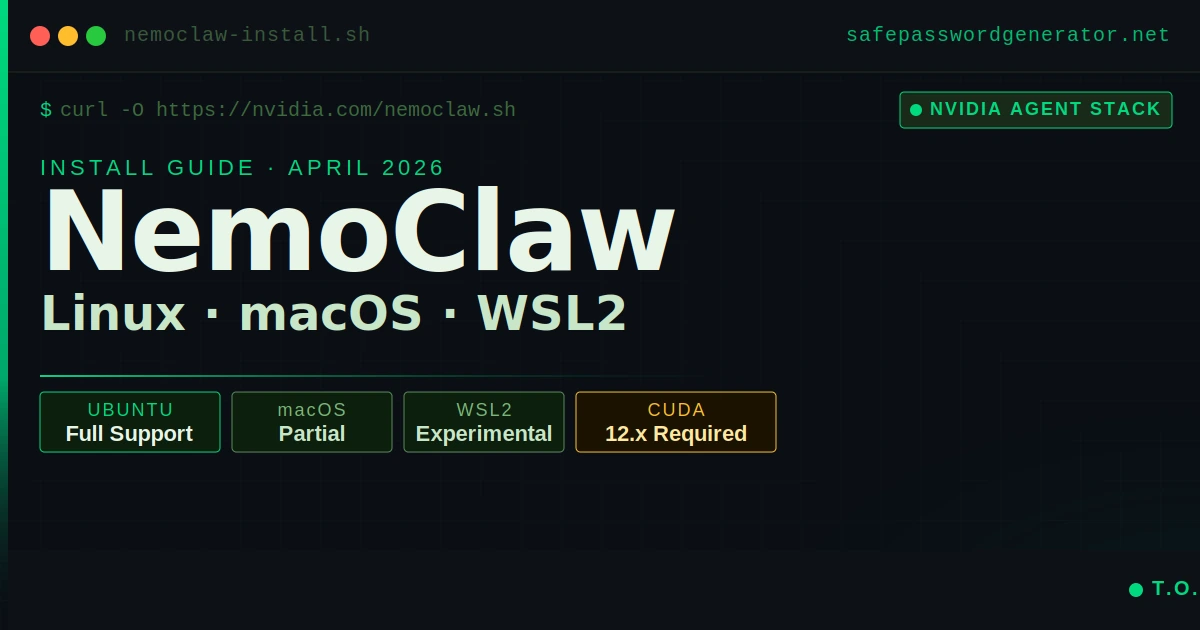
This guide covers the full setup for Linux (the primary supported path), macOS (partial support), and Windows via WSL2 (experimental). I will tell you exactly where each platform falls short and what to do about it.
What NemoClaw actually is
NemoClaw is not a standalone AI agent. It is NVIDIA's hardened wrapper around OpenClaw, the open-source agent platform that Jensen Huang described at GTC 2026 as "the operating system for personal AI." If you do not already have OpenClaw installed, NemoClaw handles that during onboarding. But you need to understand the relationship: OpenClaw is the reasoning engine, NemoClaw is the security layer around it.
Practically, what NemoClaw adds is sandboxed container execution via NVIDIA OpenShell, policy-based network control (you decide which external services the agent can reach), inference routing through NVIDIA's Nemotron models, and a structured onboarding flow that creates and manages the whole environment. The agent runs inside a container where it can only write to /sandbox and /tmp. Everything else is read-only or blocked.
NemoClaw launched March 16, 2026 and is still in alpha. APIs and configuration schemas will change. Do not run this in production yet. The install process is stable enough for development and evaluation use.
Read the full NemoClaw security analysis to understand the architectural risks before you decide which deployment path fits your threat model.
Prerequisites before you touch the installer
Skipping this section is how you end up with a broken install and no clear error message. Check all of these before running anything.
Hardware minimums
- RAM: 8 GB minimum, 16 GB strongly recommended. During setup, Docker, k3s, and the OpenShell gateway run simultaneously. The sandbox image alone is 2.4 GB compressed. On machines with exactly 8 GB, configure at least 8 GB of swap before starting or the OOM killer will end your session mid-install.
- Disk: 20 GB free minimum. Local inference with Ollama requires approximately 87 GB for the Nemotron 3 Super 120B model. If you are routing inference through NVIDIA's cloud endpoint (the default), 20 GB is sufficient.
- GPU: Required for local inference. For cloud inference, any modern machine works.
Software requirements
- Docker Engine: Must be installed and running. Run
docker infoto confirm. If it is not in your PATH or the daemon is not active, the installer will fail silently on some platforms. - Node.js 20+: The NemoClaw CLI is Node-based. Run
node --versionto check. If you use nvm or fnm to manage versions, be aware the installer may not update your current shell's PATH automatically. - NVIDIA API key: Required for cloud inference (the default mode). Get one at build.nvidia.com. The key starts with
nvapi-. Have it ready before you start. The onboard wizard asks for it mid-flow.
Platform compatibility matrix
Check your platform against this table before running anything. The macOS local inference limitation catches people off guard more than any other issue in this guide.
| Feature | Linux (Ubuntu) | macOS (Apple Silicon) | Windows (WSL2) |
|---|---|---|---|
| CLI and Gateway | Full support | Full support | Experimental |
| Cloud inference | Yes | Yes | Yes |
| Local inference (Ollama) | Yes (NVIDIA GPU required) | No | Limited (experimental) |
| Sandbox (Landlock + seccomp) | Full | Limited | No |
| GPU acceleration | Yes (CUDA 12.x+) | No | Experimental |
Verified stack for local inference (Linux)
If you are running local inference via Ollama with GPU acceleration, your environment needs to match a tested configuration. NVIDIA NIM containers and the OpenShell runtime require CUDA 12.x. CUDA 11.x will not work. Here is the stack that runs without issues:
- OS: Ubuntu 22.04 LTS or 24.04 LTS
- Kernel: 5.15+ (check with
uname -r) - CUDA toolkit: 12.x (check with
nvcc --version). If you have CUDA 11.x installed, upgrade before attempting local inference. The CUDA toolkit version and your NVIDIA driver version must be compatible. - NVIDIA driver: 525+ (check with
nvidia-smi) - Docker Engine: 24.x+ with NVIDIA Container Toolkit installed
- Node.js: 20.x LTS
For cloud inference only, the CUDA and GPU requirements drop entirely. Any Ubuntu machine with Docker and Node.js 20+ is sufficient.
Linux install (Ubuntu, recommended)
This is the path that works. Everything below is tested on Ubuntu 22.04 and 24.04.
Step 1: Verify Docker is running
docker infoYou want to see a clean output with your server version and storage driver. If you see "Cannot connect to the Docker daemon," start it with sudo systemctl start docker and ensure your user is in the docker group: sudo usermod -aG docker $USER. Log out and back in after.
Step 2: Confirm Node.js version
node --versionMust return v20.x or higher. If you are on an older version, install via the NodeSource repository or use nvm. After installing with nvm, run source ~/.bashrc (or source ~/.zshrc for zsh) before continuing so the PATH updates take effect.
Step 3: Download and inspect the installer
The official install command pipes directly to bash:
curl -fsSL https://www.nvidia.com/nemoclaw.sh | bashAs a security practitioner, I recommend against running any curl | bash blindly, even from a trusted source. Download the script first, read it, then execute it:
curl -O https://www.nvidia.com/nemoclaw.sh
cat nemoclaw.sh   # inspect before running
bash nemoclaw.shThe script installs Node.js if it is not already present, then launches the guided onboard wizard. Inspecting it takes 60 seconds and is the kind of habit that separates teams that get breached from those that do not. The install pulls approximately 2.4 GB for the sandbox image. Plan for a few minutes on a fast connection, longer if your bandwidth is limited.
Step 4: Complete the onboard wizard
See the onboard section below for what each prompt means and how to answer it.
Step 5: Verify the install
nemoclaw my-assistant status
nemoclaw my-assistant connectThe status command confirms the sandbox is running with its security profile. The connect command drops you into the TUI where you interact with the agent. If both work without errors, your install is good.
macOS install (partial support)
macOS support exists but comes with a significant limitation: local inference does not work on macOS. The CLI installs, the gateway runs, and you can use cloud inference through NVIDIA's endpoint. If you need the agent running entirely on-device, you need a Linux machine.
macOS prerequisites
Install Docker Desktop for Mac and ensure it is running. In Docker Desktop Settings, go to Resources and set memory to at least 8 GB. The default is often 4 GB, which will cause the install to fail.
Alternatively, use Colima as a lighter Docker runtime on macOS:
brew install colima
colima start --memory 8 --disk 40Running the installer on macOS
The same one-liner works:
curl -fsSL https://www.nvidia.com/nemoclaw.sh | bashWhen the onboard wizard asks about inference, select the NVIDIA cloud endpoint. Entering a local Ollama path will fail on macOS. Have your nvapi- key ready.
After install, if nemoclaw is not found in your terminal, run source ~/.zshrc. The installer may not have updated your active shell session's PATH.
Windows install via WSL2
Windows support is experimental. GPU detection inside WSL2 has documented issues. For evaluation and testing this path works. For anything requiring GPU acceleration or production-adjacent use, run a Linux VM or use a cloud instance instead.
Step 1: Enable WSL2
Open PowerShell as administrator and run:
wsl --installThis installs Ubuntu by default. Reboot when prompted.
Step 2: Configure Docker Desktop for WSL2
Install Docker Desktop for Windows. In Settings, go to General and enable "Use the WSL2 based engine." Under Resources, enable WSL Integration for your Ubuntu distro. Set memory to at least 8 GB under Resources.
Step 3: Open your WSL2 Ubuntu terminal
All NemoClaw commands run inside WSL2, not in PowerShell or CMD. Open Ubuntu from the Start menu (or run wsl from PowerShell) and treat everything from here as a Linux install.
Step 4: Run the installer inside WSL2
curl -fsSL https://www.nvidia.com/nemoclaw.sh | bashThe same prerequisites apply: Docker must be reachable from inside WSL2 (verify with docker info inside your WSL2 terminal) and Node.js 20+ must be installed.
If you encounter permission errors on the nemoclaw binary, fix them with:
chmod +x ~/.local/bin/nemoclawThe onboard wizard: what each prompt means
The wizard runs automatically after install. Most people accept defaults without understanding what they are agreeing to. Here is what each prompt is actually doing.
Sandbox name
The default is my-assistant. This is just a label for the container NemoClaw creates. You can use anything. If you plan to run multiple sandboxes, give them meaningful names now.
Inference provider
NemoClaw routes inference through NVIDIA's cloud endpoint by default, using the nvidia/nemotron-3-super-120b-a12b model. This requires your nvapi- key. If you want local inference via Ollama (Linux only, requires ~87 GB disk and CUDA 12.x with GPU acceleration enabled), you select that path here and point the wizard to your Ollama host. For teams running NVIDIA NIM containers on-premises, NIM is the third option and keeps inference entirely within your infrastructure without requiring the full Ollama setup.
Teams handling sensitive data often choose local inference or NIM containers specifically to keep data on-device and satisfy data residency requirements. If that matters for your use case, plan for the disk space and verify your CUDA toolkit version before running the installer.
Policy presets
The wizard offers a list of network policy presets: Slack, Discord, Jira, npm, PyPI, Docker Hub, HuggingFace, and others. These control which external services the sandbox can reach. For a basic install, decline all presets. You can add them later by editing the policy YAML at:
$(npm root -g)/nemoclaw/nemoclaw-blueprint/policies/openclaw-sandbox.yamlAccepting presets on day one grants the sandbox network access to external registries you may not need. Add only what your actual workflow requires.
After the wizard completes
You will see a summary like this:
Sandbox my-assistant (Landlock + seccomp + netns)
Model nvidia/nemotron-3-super-120b-a12b (NVIDIA Endpoints)

Run:    nemoclaw my-assistant connect
Status: nemoclaw my-assistant status
Logs: nemoclaw my-assistant logs --followThose three commands are your day-to-day interface. Connect opens the TUI, status shows what is running, and logs let you see what the agent is doing in real time.
One thing the wizard does not surface clearly: environment variables set after onboarding finishes do not affect an already-built sandbox. The sandbox image is built during onboarding with settings baked in. If you need to pass environment variables to the agent, inject them before running nemoclaw onboard, not after. To change a baked-in setting, you need to re-run nemoclaw onboard to rebuild the sandbox.
Common errors and fixes
"Cannot connect to the Docker daemon"
Docker is not running or your user does not have permission. Start Docker and add your user to the docker group:
sudo systemctl start docker
sudo usermod -aG docker $USERLog out and back in for the group change to apply.
"nemoclaw: command not found" after install
The installer updated your shell config file but not your active session. Run:
source ~/.bashrcOr open a new terminal window. If you use zsh, use source ~/.zshrc instead.
"Insufficient memory: need 8192 MB"
Your Docker daemon's memory limit is set too low. In Docker Desktop, go to Settings, then Resources, and increase memory to at least 8 GB. On Linux without Docker Desktop, add swap space to compensate:
sudo fallocate -l 8G /swapfile
sudo chmod 600 /swapfile
sudo mkswap /swapfile
sudo swapon /swapfile"OpenShell runtime failed to start"
Usually a Docker configuration issue. Run docker ps to see if any containers are in a crash loop. Run nemoclaw my-assistant logs --follow to see the full output. If the gateway fails to bind a port, check whether something else is already using ports 3284 or 3285.
Installer ran but nemoclaw onboard is needed again
If you need to recreate the sandbox, always use nemoclaw onboard. Do not use openshell gateway start --recreate or openshell sandbox create directly. Those commands bypass NemoClaw's lifecycle management and leave your environment in an inconsistent state.
What you can actually automate with NemoClaw
The install is the prerequisite. The reason to bother is what runs inside the sandbox once it is up. Three use cases that make sense for security-focused teams, ordered from simplest to most involved.
1. Automated config and secrets audit
This is the most immediately useful thing you can point NemoClaw at. The agent scans a target directory for exposed secrets, misconfigured environment files, hardcoded credentials, and insecure permission settings, then surfaces findings in the TUI without writing anything outside the sandbox.
Connect to your sandbox and give the agent a prompt like this:
nemoclaw my-assistant connect

> Scan /sandbox/project for hardcoded credentials, exposed .env files,
  world-readable private keys, and any config values that look like
API keys or passwords. Report findings by severity.You mount the directory you want scanned into the sandbox at startup. Because the agent can only read from that mount point and cannot write outside /sandbox, there is no risk of it modifying files during the audit. The network policy YAML controls whether findings get posted anywhere, so you can run the audit entirely offline.
For teams doing OpenClaw security audits before migrating to NemoClaw, this pairs well with the checklist in the OpenClaw security audit guide.
2. Stale credential detection and rotation prompting
Credentials that never rotate are a breach waiting to happen. the same pattern that left 23 million users exposed in the Paidwork breach with banking details and password hashes sitting on criminal forums for months. Most teams know this and rotate nothing anyway because the process is manual and nobody owns it. NemoClaw handles the detection side and can be configured to prompt rotation through whichever channel your team actually uses.
The setup requires adding the Slack preset to your policy YAML so the sandbox can reach your notification endpoint:
# In openclaw-sandbox.yaml, under network_policies:
- name: slack
preset: slackThen instruct the agent on a schedule or trigger:
> Check /sandbox/credentials/registry.json for any API keys or service
  tokens last rotated more than 90 days ago. For each one found, post
  a Slack message to #security-ops with the key name, age in days,
and the owning team. Do not include the key value in the message.The agent reads your credential registry (a JSON file you maintain with key metadata, not the actual secrets), identifies stale entries, and posts the alert. The actual secret values never leave your environment. This is exactly the workflow that breaks down when teams rely on browser-saved passwords or shared spreadsheets instead of a proper vault. A password manager with an auditing feature handles the vault side; NemoClaw handles the detection and alerting automation.
3. Slack and Jira security issue triage
Security findings come in from multiple channels: Slack messages, Jira tickets, GitHub issues, automated scanner output. The agent can monitor a Slack channel or Jira project, classify incoming reports by severity, apply the right labels, and escalate anything that matches a critical pattern without waiting for a human to triage the queue.
With both the Slack and Jira presets added to your policy YAML:
> Monitor #security-reports in Slack. For each new message:
  - Classify severity as critical, high, medium, or low based on
    whether it mentions exposed credentials, RCE, data exfiltration,
    or configuration drift.
  - Create a Jira ticket in the SEC project with the classification
    and a summary.
- For any critical classification, also ping @security-lead directly.This runs as a persistent agent inside the sandbox. The sandboxing matters here because the agent has read access to your Slack workspace and write access to Jira. You want those permissions scoped tightly. NemoClaw's network policy controls exactly which hosts the agent can reach, so even if the agent behaves unexpectedly, it cannot exfiltrate data to an arbitrary endpoint.
All three of these examples share a common requirement: the credentials that let the agent talk to Slack, Jira, or your internal systems need to be stored somewhere secure before they go into the sandbox environment. Putting them in a plain text file defeats the point of the sandboxing. Use a secrets manager or a password vault and inject them as environment variables at sandbox start.
What NemoClaw does and does not protect
NemoClaw is marketed as the secure way to run OpenClaw, and the container sandboxing is genuinely useful. But there are limits worth understanding before you trust it with anything sensitive.
What the sandbox actually prevents: the agent cannot write outside /sandbox and /tmp. It cannot reach external hosts you have not explicitly approved in the policy YAML. The seccomp and Landlock profiles restrict system calls and filesystem access at the kernel level. For a local dev environment running an autonomous agent, that is a meaningful security improvement over running OpenClaw bare.
What it does not prevent: a compromised NVIDIA API key still exposes your inference account. The policy presets, if accepted carelessly, open network paths you may not intend. And NemoClaw does not currently support non-NVIDIA models, which means you are locked into NVIDIA's inference stack for now.
For teams in regulated environments, the local inference path via Ollama keeps data on-device entirely. That is worth the 87 GB disk requirement if data residency is a compliance requirement.
For the full OpenClaw hardening protocol on Mac mini, see this guide.
I covered the three specific security gaps NemoClaw does not address in more detail in the NemoClaw vs OpenClaw security comparison.
A note on credential hygiene during setup
The NemoClaw install process puts several credentials in play: your NVIDIA API key, Docker Hub credentials if you are pulling private images, and potentially SSH keys if you are installing on a remote VM. Most teams handle this badly during setup. Keys end up in shell history, in environment files committed to repos, or pasted into Slack.
The NVIDIA API key in particular starts with nvapi- and is easy to accidentally expose. Treat it like a password. Do not paste it into any file that gets committed. Do not store it in a plain text note.
If you are not already using a password manager to generate and store credentials like this, a NemoClaw setup is a reasonable moment to start. The teams I have seen handle this best use a shared vault for infrastructure credentials, not individual sticky notes or browser-saved passwords. NordPass has a team vault that works for exactly this kind of use case:
Affiliate link. SPG earns a commission at no extra cost to you.
try NordPass for secure credential storage.Frequently asked questions
Does NemoClaw work without an NVIDIA GPU?
Yes, if you use cloud inference through NVIDIA's endpoint. The default setup routes inference to NVIDIA's cloud, so you only need a GPU for local inference via Ollama. Most people starting out should use the cloud path.
Can I use NemoClaw on a cloud VM?
Yes. Any Ubuntu VM with Docker, Node.js 20+, and 8+ GB of RAM works. DigitalOcean has a 1-Click Marketplace deployment that automates the full setup if you want to skip the manual steps.
What models does NemoClaw support?
NemoClaw only supports NVIDIA's models. The default cloud model is nvidia/nemotron-3-super-120b-a12b. For local inference, you can use NVIDIA NIM containers. OpenAI, Anthropic, and other providers are not supported.
How do I uninstall NemoClaw?
If you came here from an OpenClaw setup looking to clean house entirely, the full removal process for OpenClaw is covered in the OpenClaw uninstall guide. For NemoClaw specifically, the repository includes an uninstall script documented in the GitHub repo.
Is NemoClaw production-ready?
Not yet. NVIDIA explicitly states it is in alpha as of March 2026 and APIs may change without notice. Use it for development, evaluation, and experimentation. Wait for a stable release before putting it anywhere near production workloads.
Can I switch models without restarting?
Yes. NemoClaw supports switching the inference model at runtime without restarting the sandbox. This is one of the more useful features for teams evaluating different model configurations.