By Tim O. · April 15, 2026 · 12 min read
OpenClaw Mac Mini: The Hardening Guide Apple Didn't Write
A security researcher scanned the internet for exposed OpenClaw installs and found 42,665 of them. Over 93% had authentication bypasses. Eight had no protection at all, leaving full shell access open to anyone who typed in the IP address. Most of those people followed a setup guide. They just followed the wrong one.
OpenClaw requires broad system permissions: shell execution, file system access, browser automation, and messaging integrations. Running it on your primary personal machine puts every saved password, banking session, SSH key, and iCloud credential within reach if anything goes wrong. This guide covers how to set it up correctly on a dedicated Mac mini from day one.
One-click hardened config block
Every hardening step in this guide maps to a config value. Rather than applying them one command at a time, copy the block below into your ~/.openclaw/config.json after install. It locks down every setting covered in the five non-negotiables section in a single paste.
Hardened OpenClaw config for Mac mini
Copy this into ~/.openclaw/config.json immediately after running openclaw onboard. Then restart the gateway.
After pasting, replace the token value by running openssl rand -hex 32 in your terminal and substituting the output. Then run openclaw gateway restart.
Run the exposure audit on your Mac mini right now
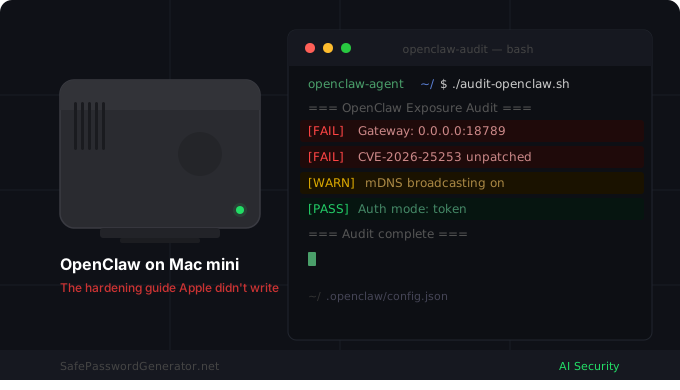
If you already have OpenClaw installed, or if you want to verify your setup after following this guide, the script below checks the four most common misconfiguration failures. Copy it into your terminal and run it from inside your OpenClaw standard user account.
#!/bin/bash
echo "=== OpenClaw Exposure Audit ==="

# Check 1: Gateway binding
BIND=$(lsof -i :18789 2>/dev/null | grep LISTEN | awk '{print $9}')
if [ -z "$BIND" ]; then
  echo "[INFO] Gateway not running on port 18789"
elif echo "$BIND" | grep -q "127.0.0.1"; then
  echo "[PASS] Gateway bound to loopback (127.0.0.1) - safe"
else
  echo "[FAIL] Gateway exposed on $BIND - CHANGE IMMEDIATELY"
fi

# Check 2: OpenClaw version
VERSION=$(openclaw --version 2>/dev/null | grep -oE '[0-9]{4}\.[0-9]+\.[0-9]+')
if [ -z "$VERSION" ]; then
  echo "[WARN] Could not detect OpenClaw version"
else
  echo "[INFO] OpenClaw version: $VERSION"
  if [[ "$VERSION" < "2026.1.29" ]]; then
    echo "[FAIL] Version older than 2026.1.29 - CVE-2026-25253 unpatched"
  else
    echo "[PASS] Version is patched against CVE-2026-25253"
  fi
fi

# Check 3: Auth mode
AUTH=$(openclaw config get gateway.auth.mode 2>/dev/null)
if [ "$AUTH" = "token" ]; then
  echo "[PASS] Auth mode: token"
else
  echo "[FAIL] Auth mode is '$AUTH' - set to 'token' immediately"
fi

# Check 4: mDNS
MDNS=$(openclaw config get gateway.mdns 2>/dev/null)
if [ "$MDNS" = "false" ]; then
  echo "[PASS] mDNS disabled"
else
  echo "[WARN] mDNS is enabled - gateway broadcasting to local network"
fi

echo "=== Audit complete ==="
Save it as audit-openclaw.sh, run chmod +x audit-openclaw.sh, then ./audit-openclaw.sh. Any line marked [FAIL] needs immediate attention before you connect a messaging channel. Any line marked [WARN] is a risk you should understand before accepting it.
What each audit result means
Tap any result to see the fix command.
Why everyone is buying a Mac mini for OpenClaw right now
Apple's Mac mini M4 Pro with 64GB of RAM went from a niche developer machine to completely sold out on Apple's website in the span of a few months. As of April 2026, high-RAM configurations are listed as "currently unavailable" with no delivery estimate and no path to ordering. The cause, at least partly, is OpenClaw.
OpenClaw is an open-source AI agent that runs 24/7 on your own hardware. It connects to messaging apps like WhatsApp, Telegram, and iMessage to execute real-world tasks: managing files, sending emails, running terminal commands, browsing the web on your behalf. It is not a chatbot. It acts.
The Mac mini became the default hardware for running it for three reasons. Apple Silicon's unified memory architecture lets the CPU, GPU, and Neural Engine share the same memory pool with no PCIe bottleneck, which means a 64GB Mac mini can run a 70-billion-parameter model in a way a conventional PC cannot match at a comparable price. The machine draws 5 to 15 watts under typical OpenClaw workloads, meaning you can leave it running around the clock for roughly $1 to $2 a month in electricity. And it is small enough to sit in a closet or data rack without anyone noticing it.
The problem is that most people buying a Mac mini specifically for OpenClaw have never set up a dedicated AI agent server before. The setup guides they find focus on getting OpenClaw running, not on getting it running safely. Those are two very different things.
The real security risks before you install anything
OpenClaw's own documentation states plainly: "There is no 'perfectly secure' setup." That honesty is worth taking seriously before you run the installer.
The risks fall into three categories.
Exposed gateway ports
A fresh OpenClaw install binds its gateway to 0.0.0.0:18789 by default. That address means every device on your network can reach it, and if you have any port forwarding configured on your router, every device on the internet can reach it too. There is a loopback-only mode that restricts the gateway to 127.0.0.1, but there is a documented fallback behavior: if loopback binding fails for any reason, the gateway silently reverts to 0.0.0.0 with no warning. You can believe you are protected while you are actually exposed.
CVE-2026-25253: the one-click RCE
In January 2026, security researchers discovered a critical vulnerability (CVSS score 8.8) that allowed attackers to steal your gateway authentication token through a single crafted webpage. Once they had the token, they could connect to your local OpenClaw instance, disable sandboxing, and run arbitrary commands on your machine. This was patched in version 2026.1.29. If you are installing fresh today, you will get a patched version, but if you ever update carelessly or run an older image, you are exposed again.
Malicious ClawHub skills
ClawHub is OpenClaw's extension marketplace. A security audit of all 2,857 skills on the platform found 341 malicious entries. Of those, 335 were part of a coordinated campaign called ClawHavoc that distributed the Atomic Stealer malware on macOS, targeting credentials, crypto wallet keys, and SSH keys. The number-one ranked community skill was found to contain active data exfiltration via a hidden curl command sending data to external servers. OpenClaw's own docs warn that roughly 17 to 20 percent of community skills contain malicious code.
If OpenClaw runs under your primary user account, it has access to everything that account can reach: your iCloud keychain, saved browser passwords, SSH keys, Anthropic API keys, banking cookies, and every file you own. A dedicated standard user account limits the blast radius to that account only. This is the single most important configuration step in this entire guide.
The table below summarizes the documented risks and their current patch status.
| Risk | Severity | Status |
|---|---|---|
| CVE-2026-25253: one-click remote code execution via token theft | Critical 8.8 | Patched in v2026.1.29. Update immediately if on older version. |
| Gateway binding fallback to 0.0.0.0 on loopback failure | High | Behavior confirmed in source. Always verify with lsof after config. |
| ClawHavoc malicious skill campaign on ClawHub (341 skills) | Critical | Ongoing. Audit every skill before installing. |
API keys stored in plaintext JSON under ~/.openclaw/ | High | By design. Requires credential hygiene at OS level. |
| mDNS broadcasting gateway existence to local network | High | Default behavior. Disable in config. |
Configure macOS before touching the installer
Do these five things on your Mac mini before you download anything OpenClaw-related. They take about 15 minutes combined and they matter more than any setting inside OpenClaw itself.
1. Enable FileVault
FileVault encrypts everything on your startup drive with AES-XTS 256-bit encryption. On Apple Silicon, the dedicated crypto engine handles this with no measurable performance impact. If someone physically takes your Mac mini, FileVault means they get a brick instead of your data.
Go to System Settings, then Privacy & Security, then FileVault. Turn it on and save your recovery key somewhere you will not lose it. A password manager is the right place for it, covered in the credential hygiene section below.
2. Enable the macOS firewall
Open System Settings, then Network, then Firewall. Turn it on. Click Options and enable stealth mode. This stops your Mac mini from responding to pings and connection probes from other devices on your network, which matters because OpenClaw broadcasts its gateway via mDNS by default.
3. Enable automatic software updates
Go to System Settings, then General, then Software Update. Enable all automatic update options. The CVE-2026-25253 patch came fast but many users were still running unpatched installs weeks later. Keeping macOS current closes the OS-level attack surface that malicious skills try to exploit.
4. Configure energy settings for always-on operation
Go to System Settings, then Energy. Enable "Prevent automatic sleeping when the display is off," "Wake for network access," and "Start up automatically after a power failure." If your Mac mini is in a closet or rack without a connected monitor, these settings keep it reachable after power outages and sleep cycles.
5. Set Gatekeeper to App Store and identified developers
Go to System Settings, then Privacy & Security. Under the "Allow applications downloaded from" option, select "App Store and identified developers." This blocks unnotarized binaries from running without explicit approval. OpenClaw itself is notarized, but this setting adds a layer of protection against any malicious skill that tries to execute a bundled binary.
Create a dedicated user account for OpenClaw
This is the most important setup step. Do not skip it.
Create a new standard (non-admin) user account on your Mac mini and run OpenClaw exclusively from that account. A standard account cannot install system software, modify system files, or escalate privileges. If OpenClaw gets compromised through a malicious skill or prompt injection, the attacker's access is limited to whatever that standard account can reach, which should be nothing personal.
To set this up:
- Go to System Settings, then Users & Groups, then click the Add Account button.
- Set the account type to Standard (not Administrator).
- Give it a name like
openclaw-agentor similar to make its purpose obvious. - Log out of your main account and log into the new standard account for all OpenClaw operations from this point forward.
One important note: when you need to install Homebrew, Node.js, or run any brew install commands, you will need to temporarily re-promote the standard account to admin in System Settings (log in as your admin account, grant admin rights, run the install, then demote the account again). This takes about 30 seconds per operation and keeps permissions clean.
Why this works: Your personal iCloud files, saved browser passwords, Keychain credentials, SSH keys, and banking sessions all live in your primary user account's home directory. A standard account for OpenClaw has no access to any of that. The blast radius of any compromise stays contained.
Install OpenClaw with hardening from line one
With macOS configured and your dedicated account ready, the install itself is straightforward. Run all of these commands from inside your standard openclaw-agent account.
Step 1: Install Homebrew
/bin/bash -c "$(curl -fsSL https://raw.githubusercontent.com/Homebrew/install/HEAD/install.sh)"Follow the prompts. If Homebrew asks for admin credentials during install, enter your admin account password when prompted. After install, run brew --version to confirm it worked.
Step 2: Install Node.js via Homebrew
brew install nodeConfirm with node --version. You need v20 or higher. OpenClaw's CLI is Node-based and the installer will fail silently on older versions.
Step 3: Download and inspect the OpenClaw installer before running it
Most guides tell you to run the one-liner installer directly. As a security practitioner, I recommend downloading the script first and reading it before executing it. This takes 60 seconds and is the kind of habit that matters when you are setting up a machine with autonomous shell access.
curl -O https://openclaw.ai/install.sh
cat install.sh
# Read through it, then run it:
bash install.shStep 4: Run the onboard wizard
After install completes, OpenClaw launches its onboard wizard. The wizard sets up your gateway, authentication, and initial agent configuration. At the inference provider step, connect your Anthropic API key. At the gateway step, when it asks about the gateway bind address, select loopback only. Do not accept the default.
Step 5: Immediately verify the gateway binding
lsof -i :18789 | grep LISTENYou want to see 127.0.0.1:18789 in the output. If you see *:18789 or 0.0.0.0:18789, the loopback binding failed and your gateway is exposed. Fix it before connecting any messaging channels.
The 5 settings to never skip
These are not optional hardening steps for advanced users. Every single one of them addresses a documented attack vector.
- Bind the gateway to loopback only. Open your OpenClaw config and set the gateway host to
127.0.0.1. Then verify withlsof -i :18789 | grep LISTENthat the bind succeeded. Never trust the config file alone. Always verify the actual running state.openclaw config set gateway.host 127.0.0.1 openclaw gateway restart - Set a strong authentication token. OpenClaw supports token-based authentication on the gateway. Set one immediately after install. Without it, any process on your machine can connect to your agent without a password.
openclaw config set gateway.auth.mode token openclaw config set gateway.auth.token "$(openssl rand -hex 32)" - Set DM policy to pairing mode. OpenClaw's default messaging policy responds automatically to incoming messages. Pairing mode restricts the agent to only respond to devices you have explicitly authorized. This prevents strangers from discovering and interacting with your agent via WhatsApp or Telegram.
openclaw config set messaging.dmPolicy pairing - Disable mDNS discovery. By default, OpenClaw broadcasts its gateway address to every device on your local network via mDNS. Disable this so your agent does not advertise itself.
openclaw config set gateway.mdns false - Confirm you are on v2026.1.29 or later. The CVE-2026-25253 patch landed in this version. If you installed fresh today you should be fine, but verify anyway.If the version shown is older than 2026.1.29, update before doing anything else with
openclaw --versionnpm update -g openclaw.
Credential hygiene: where OpenClaw stores your secrets
This is where most setup guides stop, and it is exactly where the real credential risk lives.
OpenClaw stores a significant amount of sensitive material in plaintext JSON files under ~/.openclaw/ on your Mac mini. That directory contains your Anthropic API key and any other LLM provider keys, OAuth tokens for Slack and Gmail integrations, Telegram and Discord bot tokens, WhatsApp session credentials, and your gateway authentication token. Anyone with access to that directory has access to all of those credentials.
A dedicated standard user account (set up above) limits who can reach that directory. But it does not protect against a malicious skill that reads and exfiltrates the files from within the agent's own session. Several of the 341 malicious ClawHub skills used exactly this approach: they issued shell commands to read config files and curl the contents to an attacker-controlled server.
Three practices reduce this risk significantly:
- Rotate your API keys regularly. If a key gets exfiltrated, an attacker with a stale key has nothing. Set a calendar reminder to rotate your Anthropic and OpenAI API keys every 30 to 60 days.
- Use separate API keys for OpenClaw. Create a dedicated key in your Anthropic console specifically for OpenClaw with usage limits set. Keep your primary development key separate.
- Store your recovery credentials somewhere encrypted. Your FileVault recovery key, your gateway auth token, and any API key backups should live in an encrypted password manager, not in a notes app or a plaintext file on your desktop.
OpenClaw stores your Anthropic key in plaintext. Here's the fix.
OpenClaw writes your API keys, OAuth tokens, and gateway credentials to unencrypted JSON files under ~/.openclaw/ by design. If you do not want to rotate keys every week, you need an encrypted vault to store the master versions. NordPass uses XChaCha20 zero-knowledge encryption: your keys live in your vault, NordPass cannot see them, and they sync across every device you own. It takes two minutes to set up and one minute per month to rotate your keys from it.
Affiliate link. SPG earns a commission at no extra cost to you.
Try NordPass FreeAffiliate link. We earn a small commission if you upgrade, at no cost to you.
ClawHub skills: what to install and what to avoid
The ClawHub marketplace is OpenClaw's biggest productivity accelerator and its biggest attack surface. The 341 malicious skills found in a single audit were not obscure entries buried in page 20 of search results. Some were highly ranked. The number-one community skill at the time of one audit contained active data exfiltration.
A practical framework for evaluating skills before you install:
- Check the source. Skills published by named organizations with public GitHub profiles are safer than anonymous submissions. NVIDIA, Anthropic, and Cisco publish verified skills. Anonymous accounts with no contribution history are a risk.
- Read the SKILL.md file. Every skill has a manifest. Read it before installing. If it requests permissions that do not match what the skill claims to do (a "productivity" skill requesting access to your crypto wallet, for example), skip it.
- Check for curl commands in skill code. The ClawHavoc campaign hid data exfiltration inside curl commands buried in skill scripts. Grep the skill directory for
curlafter install and trace where each call goes. - Start with zero skills. Run OpenClaw for a week with no skills installed. Learn what it can do natively. Add skills one at a time and verify behavior after each addition.
If you want automated protection, ClawSec is an open-source security suite that adds drift detection, skill integrity checks, and CVE monitoring on top of a standard OpenClaw install. It is not a substitute for manual vetting but it catches known-bad signatures.
Remote access without exposing your gateway
Your Mac mini is probably running headless in a closet or rack. You need a way to reach it remotely that does not involve poking a hole in your router's firewall.
Tailscale is the cleanest solution. It creates an encrypted mesh VPN between your devices using WireGuard under the hood. Once your Mac mini and your MacBook (or phone) are on the same Tailnet, you can SSH into the Mac mini from anywhere using its Tailscale IP. The gateway never touches the public internet.
To set it up:
- Download Tailscale from the Mac App Store on your Mac mini. Sign in with your Google or GitHub account.
- Install Tailscale on your MacBook and phone as well.
- Enable SSH on the Mac mini: go to System Settings, then General, then Sharing, then turn on Remote Login. Set "Allow access for" to "Only these users" and add your OpenClaw standard account.
- From your MacBook, SSH in via the Tailscale IP:
ssh openclaw-agent@100.x.x.x
Port 18789 should never be forwarded on your router. There are exactly two safe ways to reach your OpenClaw gateway remotely: Tailscale, or an SSH tunnel. Everything else opens you to the same exposure documented in the Shodan scan above.
FAQ
Can I run OpenClaw on a Mac mini M4 with 16GB RAM?
Yes, for cloud inference through Anthropic or OpenAI. The 16GB base model handles the OpenClaw gateway and agent processes without issue. You only need 32GB or 64GB if you plan to run local inference models via Ollama, which requires keeping large model weights in unified memory. For most first-time buyers, cloud inference is the right starting point regardless of how much RAM your machine has.
Does NemoClaw solve the security problems described in this guide?
Partially. NemoClaw adds kernel-level sandboxing, policy-based network control, and structured onboarding on top of OpenClaw. It does not solve the ClawHub malicious skill problem, and local inference via Ollama does not work on macOS yet (as of April 2026). NemoClaw is still in alpha and is a Linux-first tool. For a Mac mini setup today, the hardening steps in this guide are the right approach. NemoClaw is worth watching as it matures.
My Mac mini order still has not shipped. Can I set up OpenClaw on my main MacBook in the meantime?
Technically yes, but you should understand what you are accepting. Your MacBook has your personal files, browser sessions, iCloud Keychain, and saved passwords within reach of the OpenClaw process. If anything goes wrong, the entire contents of your primary user account are at risk. If you want to experiment before your Mac mini arrives, create a dedicated macOS user account on your MacBook, configure it as described above, and treat it as temporary. Move everything to the dedicated Mac mini once it ships.
Where does OpenClaw store my Anthropic API key on macOS?
Under ~/.openclaw/ in your user's home directory, in plaintext JSON files. This is a known limitation of the current architecture. The credential hygiene steps in this guide (dedicated account, separate API key with usage limits, regular rotation, encrypted storage in a password manager) are the practical mitigations available today.
What RAM configuration should I wait for if the Mac mini is currently sold out?
For cloud inference only: the 16GB or 24GB M4 Mac mini is sufficient and those configurations are still orderable with shorter lead times. For local model inference: 32GB minimum, 64GB recommended.
On the M5 question: the refresh is expected around WWDC in June 2026 and will likely ship with 512GB SSD as base storage and M5 Pro configurations up to 64GB RAM. The security architecture of OpenClaw does not change between M4 and M5, so nothing in this guide becomes obsolete with a new chip. The only hardware reason to wait is if you need local inference and want the memory headroom of a higher-RAM M5 Pro configuration.
If you are buying for cloud inference with Anthropic, the base 16GB M4 Mac mini is available today with shorter lead times and handles OpenClaw without issue. Buy it now, follow this guide, and run it on cloud inference. When the M5 ships with more memory, you will already know the platform well enough to decide whether an upgrade makes sense. Waiting six to eight weeks for a chip upgrade does not make your OpenClaw setup more secure. This guide does.
Is OpenClaw safe to use?
Safe enough when configured correctly on dedicated hardware. The risks are real and documented, but they are also well understood. A dedicated standard user account, loopback-only gateway binding, token authentication, pairing-mode DMs, and disciplined skill vetting address the majority of documented attack vectors. The OpenClaw security landscape has moved fast since the January 2026 CVE disclosure, and the defaults have improved. Running it on your primary personal machine with default settings is a different story.
Your API keys deserve better than a plaintext JSON file
OpenClaw stores your credentials unencrypted on disk by design. A password manager with zero-knowledge encryption keeps your recovery keys, API keys, and gateway tokens safe even if someone accesses that directory. NordPass covers unlimited devices on its premium plan.
Try NordPass FreeAffiliate link. We earn a small commission if you upgrade, at no cost to you.